
Jam Content Help
Getting Started with Jam
Get stuck in. This guide takes your team from first login to first post — setup, structure, approvals and publishing, without the chaos.
Welcome to Jam
Jam Content is your central workspace for media, UGC, social scheduling and campaign assets. Get stuck into Jam with our getting started guide.
Set up your workspace
Invite your team, set up roles and permissions and more.
Build your media library
Import your content and organise it with folders and tags.
Collect & organise content
Gather UGC through forms and auto organise your media.
Connect socials & publish
Link your accounts, schedule posts and go live.
Section summary
- Everything lives in the left sidebar — All Media, Content, Socials, Analytics and Settings.
- The same media picker appears everywhere you add media — drag and drop new files, or hit Browse Library.
- Filter your library by type, orientation, tags, people or AI quality grade.
- Search from the top bar anywhere — Fast, Meaning or Custom Field search.
- Press ? inside the media library to see every keyboard shortcut.
Set Up Your Workspace
Step through the key settings below - general, user roles and permissions, intelligence, integrations and appearance.
General
Workspace basics every member shares.
Section summary
- Five default roles with granular, per-feature permissions — the Owner role holds the billing contact.
- Caption intelligence — company context, tone, caption length and suggested posting times — is auto-generated and adjustable.
- Connect Shopify, Iconik and Canva to pull products and finished content straight in.
- Set workspace basics like name and default timezone under General.
- Match Jam to your brand with a sidebar theme and custom logo.
Your Media Library
Bring all your scattered content into one place, then organise it so anyone can find the right asset in seconds.
Click the highlighted photo to open its detail view — tag it, moderate it, find the people in it, or send it straight to a post.
How to add media
Collections
Hand-picked collections you build and arrange yourself.
AI intelligence
Every upload is auto-tagged by people, objects and scene, so it’s findable the moment it lands.
Search by meaning — “sunset group ride” surfaces the shot even without those words on the file.
Rule-based collections that fill themselves as new content matches.
Find every asset a specific person appears in.
Section summary
- Import from drag-and-drop, Google Drive, Dropbox, Unsplash, UGC forms and social backfill.
- Organise with General, Smart and Form collections — smart ones fill themselves from rules.
- AI tagging, semantic search and (soon) face detection make everything findable.
- Open any asset’s detail view to tag it, moderate it, find the people in it and push it to a post.
Forms & UGC
Forms let fans, creators, partners and accredited press submit media straight into your workspace — consented, renamed, auto-tagged and routed to the right collection.
Drag & drop images or videos here, or click to select
What happens on submit
Asset uploaded
Photos and video arrive through the form.
Submission completed
The submitter sees a branded confirmation screen.
File renamed
Files auto-renamed to your naming convention.
Intelligent tags applied
AI tags every photo — and key frames across each video.
Collection created
A collection is spun up for the submission.
Email confirmation sent
Branded email to the uploader, plus an internal alert.
Inside Jam Forms
Every field type you can add to a form.
Example consent wording
Have your legal team review before launch
Section summary
- Forms collect consented photos and video from anyone — fans, creators, partners, accredited press.
- On submit, Jam renames files, tags them, creates a collection and emails a confirmation.
- Brand the form, embed it anywhere, and tie submissions to Shopify products.
- Built for venue capture, events, influencer delivery, media accreditation and UGC drives.
Section summary
- Connect Facebook, Instagram, TikTok, LinkedIn, YouTube, X, Pinterest and Google My Business.
- Cluster accounts into Social Groups by brand, venue or event — and post to a whole group at once.
- Set default accounts and groups so the right channels are pre-selected every time you compose.
- Each platform needs the right admin access, and tokens reconnect in one click when they expire.
Calendar
See every channel on one calendar. Colour-coded statuses show what’s drafted, pending, scheduled and live — click any post to edit or duplicate it.
Click a post to edit or duplicate it.
Share with clients & partners
Flip on Shared Calendar to give clients or brand partners a live, read-only view of what’s coming up — on a private, branded URL.
- Private, branded URL — your logo and colours.
- Clients and brand partners see exactly what’s scheduled and published.
- No Jam login required to view.
- Internal notes and approvals stay private.
Section summary
- Plan every channel on one colour-coded calendar — Draft, Pending, Scheduled, Published.
- Drag to reschedule, and edit or duplicate any post straight from the calendar.
- Activate a Shared Calendar to give clients or partners a private, branded view.
Publish
Compose once and publish everywhere. Pick your networks, drop in media, and let Jam write the caption — then schedule or send it for approval. Try the post creator below.
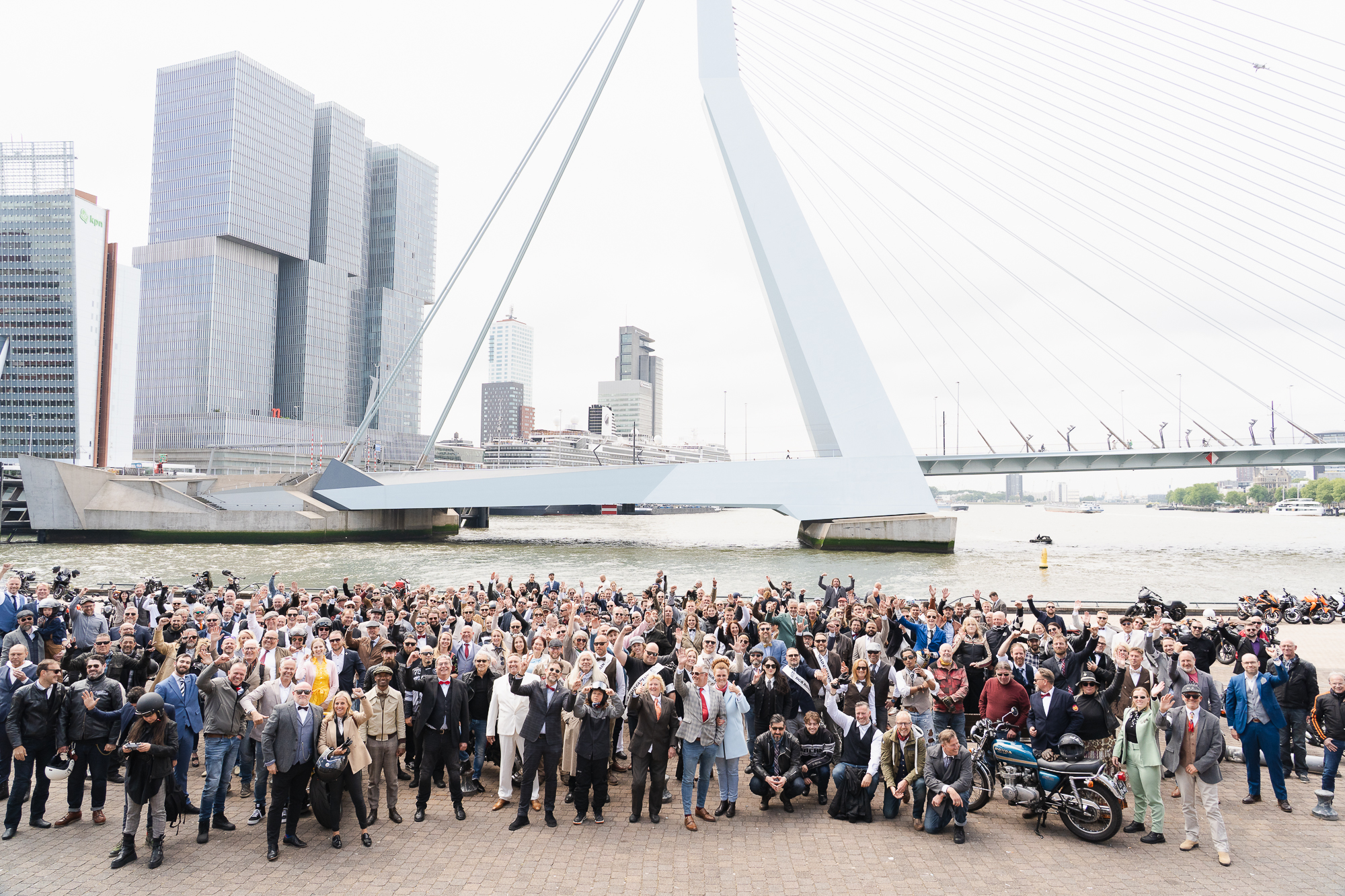
No prompt needed. Jam reads your last 30 days of posts to build a tone profile, then writes in your voice — pulling in UGC metadata like location and photo credit when it’s attached.
AI Auto Caption
Section summary
- Compose once and publish to every selected network.
- AI Auto Caption writes in your brand voice — no prompt, learned from your last 30 days of posts.
- Refine with snippets, emojis and per-platform captions.
- Require approval or schedule in a couple of clicks.
Approvals
Posts sent with Require approval land here as Draft · Needs Review. Assigned reviewers approve or send them back — try approving one below.
DGR Amsterdam — launch reel
Dealer spotlight carousel
Ride recap
Approve or send back each post — reviewers are emailed when it’s their turn.
Approval statuses3
| Status | Meaning |
|---|---|
| Needs Review | Awaiting a reviewer’s decision |
| Approved | Cleared — scheduled for posting |
| Rejected | Sent back, not approved |
Once a post is approved it’s automatically scheduled for posting on the calendar.
Section summary
- Posts sent with Require approval arrive here as Draft · Needs Review.
- Assigned reviewers approve, reject or comment — and are emailed when it’s their turn.
- Approved posts flow straight to the calendar to publish.
Extra Jam Tools
A few more tools in your Jam toolkit to round out your social workflow.
Social Analytics
Track impressions, engagement and follower growth across every connected platform — by post, account or group.
Carousel Builder
Build multi-slide carousels from your media and publish them straight to social.
Link in Bio
A branded mini landing page for your bio link — curate posts, products and links in one place.
Go Live
The final step before launch — tick everything off and your team is ready to run Jam day-to-day.
Need training?
Social Accounts
Connect every major network, then cluster accounts into Social Groups so the right channels are ready for each brand, venue or event.
Social groups
Groups cluster accounts by use case — run several events and you can keep a group per event, then publish to the whole group in one go.
Group accounts by brand, venue or event — then post to a whole group in one go.
Connected accounts
Platforms periodically refresh security tokens — if an account shows as expired, reconnect it in one click.
Social account defaults
Connecting accounts