
Migrations bulk-import large content libraries into Jam from another platform — ideal when you're moving thousands of files at once. Find them under Content → Migrations.
Supported sources
Start a migration from Google Drive, Dropbox (sign in, or paste a Dropbox Link), SharePoint and OneDrive, or Iconik. SharePoint and Iconik are connected sources - set them up once under Settings → Integrations and they appear in the New Migration menu. See Add media from SharePoint and OneDrive. Box is coming soon.
Start a migration
Go to Content → Migrations.
Click New Migration and choose a source.
Sign in to that platform. Jam runs Discovery to find your folders and files — for large libraries this can take a while.
Pick a folder — Jam imports the whole folder tree beneath it. For SharePoint, tick one or more sites, libraries or folders in the Finder-style browser.
Start it — Jam imports in the background, so you can carry on working.
Migrations only bring in media — any file that isn't a photo or video is skipped.
Track progress
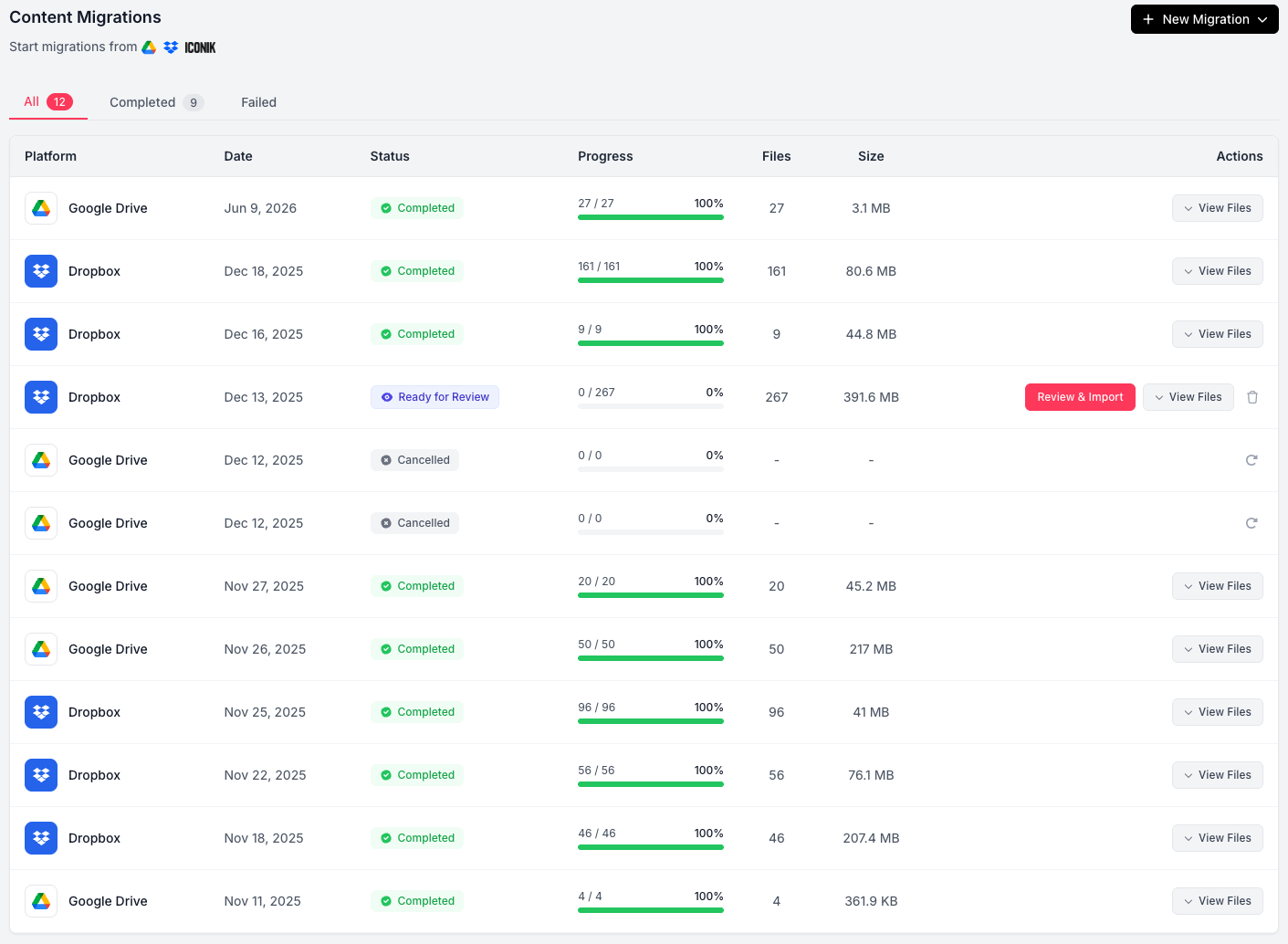
Each migration shows its Platform, Date, Status, Progress, Files and Size. Filter by All, Completed or Failed, and click View Files to see exactly what came across.
Completed — all files imported.
Ready for Review — click Review & Import to confirm before importing.
Failed or Cancelled — retry from the actions on that row.
Tip — Big libraries can take a while — migrations run in the background, so you don't have to wait around.