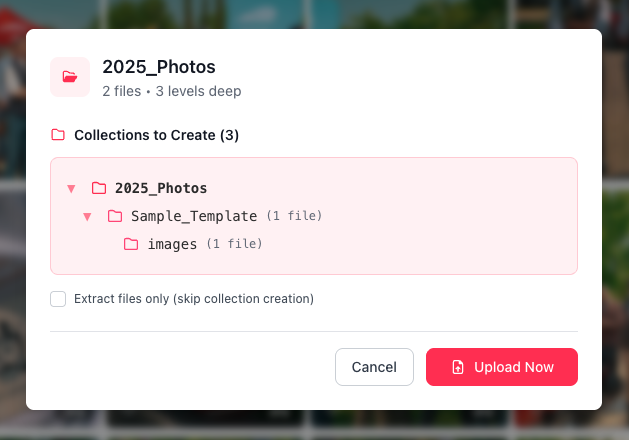
Drag and drop one or more ZIPs or folders to upload media. We automatically detect your folder structure and create matching Collections and Sub-Collections.
- Either Drag & Drop anywhere on the screen or using the Upload from Device button in the top-right.
- Drag one or multiple ZIP files and/or folders from your computer over the page until the drop zone highlights, then release. Tip: You can mix ZIPs and folders in one upload.
- Review the upload queue. The list shows each ZIP/folder with icons, item counts.
- Check the detected structure preview. You’ll see your folders as Collections and nested Sub-Collections exactly as they exist on disk or in zip folders. Note: Folder names become Collection names.
- Click Upload Now. Watch per-item progress bars and the overall progress indicator. Note: Keep this tab open until everything completes.
- Browse your Library. Go to Collections to see your original folders; click any Collection to view the imported media or Sub-collection