
The Instagram Grid Planner shows how your feed will look so you can plan a cohesive grid. Drag posts around to try different orders, leave planning notes for the team, and update scheduled times to match. Find it under Socials → Grid Planner.
What you'll see
Your published posts, laid out as your live grid — these are locked and can't be moved.
Your scheduled and draft posts, plus any notes. Use the … menu to toggle Drafts, Scheduled, Show Media, Show Notes and Show Badges for a cleaner view.
Switch between Desktop and Mobile previews.
Plan your grid
Pick an account.
Use … → Add Media to drop media in at the top and see how it'd look — or Create Post for a new one.
Drag and drop posts to try different arrangements.
If your new order puts scheduled posts out of sequence, a banner says how many are out of order. Click Update schedule to move their scheduled times so they publish in the order shown (for two swapped posts it's Switch scheduled times).
Add a planning note
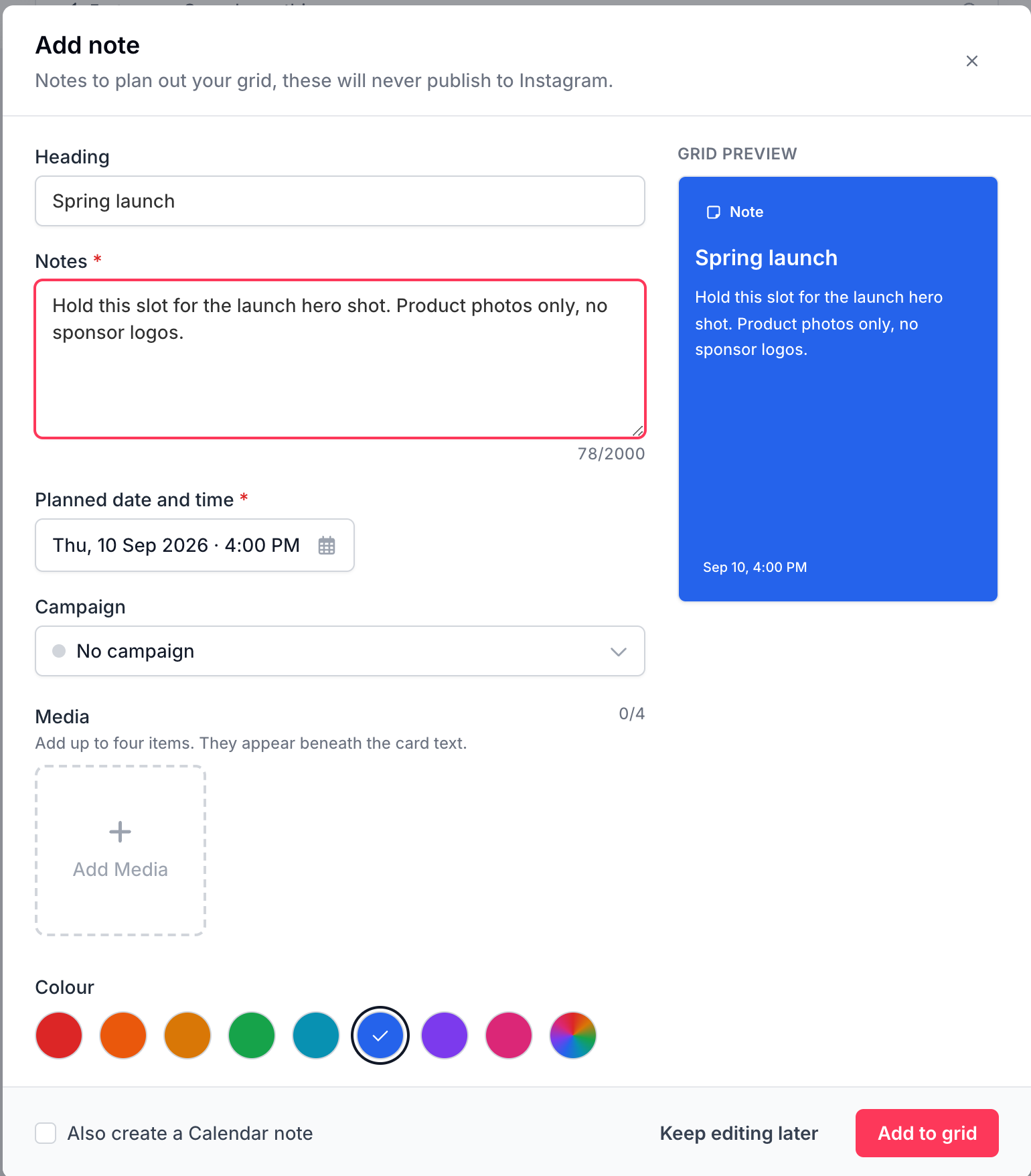
Notes mark campaign moments, reserve a slot or leave a reminder. They live only in the planner and never publish.
Click … → Add note.
Give it an optional Heading, the note itself, a planned date and time, a Campaign and a colour.
Under Media, attach up to 4 items from your library.
Click Add to grid. Drag the note like any post, and click it to edit or delete it.
Tidy up and undo
Hide a Reel - hover a scheduled Reel and use Hide Reel from grid so it doesn't show on your profile grid when it publishes.
Undo - press Cmd/Ctrl+Z to step back through drags, note changes and deletions.
Reset - choose Reset Current Changes to drop this session's moves, or Restore Default Order to clear the saved layout for everyone.
Tip — Published posts stay put, so you're only ever rearranging what hasn't gone out yet.