
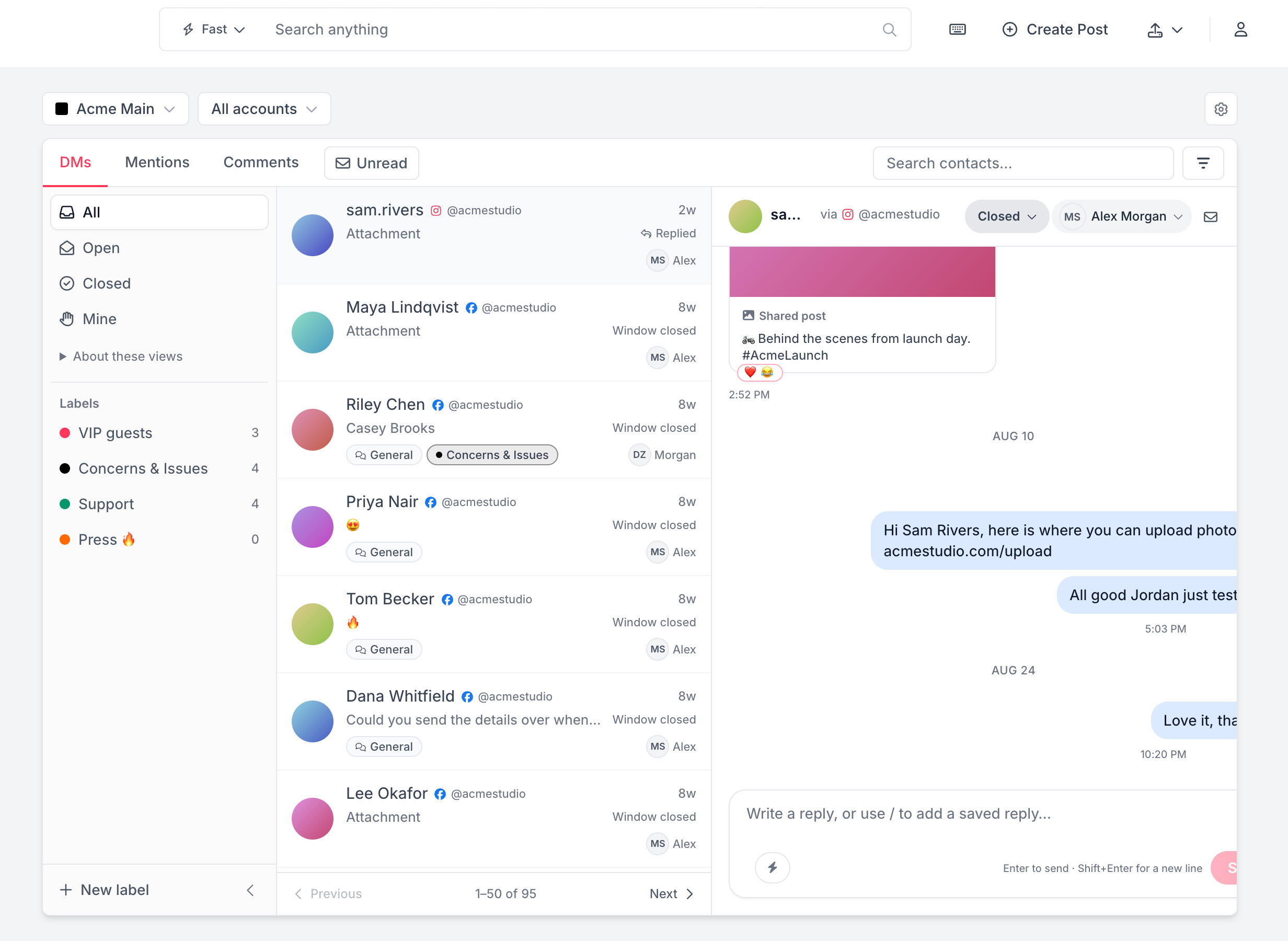
Labels and assignment let a team share one inbox without treading on each other. A label tags a conversation with whatever matters to you - VIP customer, Wholesale, Follow up - and an assignment says who is looking after it. Both live in Socials → Inbox, in the DMs and Mentions sections.
Create a label
In the left pane, under Labels, click New label.
Give it a Name (for example VIP customer), pick a colour and click Create.
Labels are shared with your team, and each one shows how many conversations carry it. Click a label in the left pane to see only those conversations - click it again to clear.
Manage labels in Inbox settings
You can also create, edit and archive labels in Inbox settings → Labels (the gear in the Inbox). The table shows each label's Name, What belongs here, Auto-apply and Conversations. With Auto-apply to new DMs on, AI adds the label to new DMs that match what belongs here. Archiving a label hides it from the inbox, and the AI stops adding it.
Label a conversation
Open the conversation and click the tag icon in the thread header (or press L), then tick the labels you want. Type a name that doesn't exist yet and choose Create to make it on the spot.
Right-click a conversation in the list and choose Assign label… to label it without opening it.
A conversation can carry several labels. To remove one, open the picker again and untick it.
Assign a conversation to a teammate
Open the conversation and click Unassigned in the thread header (or press A). Choose Assign to me, search for a teammate, or pick Unassigned to hand it back.
Right-click a conversation and choose Assign conversation… to do the same from the list.
The assignee's avatar shows on the conversation, so everyone can see who has it.
See just yours, or the unassigned pile
Click Mine in the left pane to see only the conversations assigned to you.
Open the filters and set Assigned to - Anyone, Mine, Unassigned or a specific teammate. Unassigned is the one to use for triage: it's everything nobody has picked up yet.
The Comments section
Comments on your posts have their own section. In its left pane, switch between Posts (comments grouped by the post they belong to - pick a post and work through it) and Comments (every comment from every post in one list). Use the search box to find a comment by its text, and turn on Needs reply to hide anything already answered or dismissed.
Good to know
Labelling and assigning need inbox manage permission for the account's group. Anyone with view access can still see labels and assignees.
Labels and assignment work alongside Open, Closed and Unread - assigning a conversation doesn't change its status.
Tip - Agree a handful of labels as a team before you start (for example Order query, Collab, Press) so everyone files conversations the same way.