
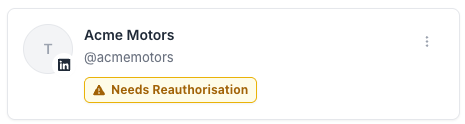
Social platforms expire their connections every so often for security. When that happens Jam marks the account Reconnect account (or Expired), and you just reconnect it - no need to set it up again.
Reconnect it yourself
Go to Socials → Manage → Accounts.
Find the card showing a Reconnect account or Expired badge.
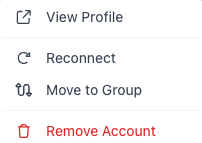
Click the Reconnect button on the card (or open its More (⋮) menu and choose Reconnect).
Log in to the platform and accept the permissions again - the badge returns to Connected.
Send a reconnect link to whoever holds the login
If a client or teammate owns the login, you don't need their password - send them a link instead. It works for Facebook, Instagram, LinkedIn, X, TikTok, Pinterest and YouTube.
On the account card, open More (⋮) and choose Send Reconnect Link.
The Send a reconnect link window names the exact account and platform being refreshed, so there's no guesswork about which login they need.
Add a label and one or more email addresses, then click Create link. Copy the link or let Jam email it.
Your recipient opens a page headed Reconnect plus the account name, clicks Reconnect and re-authorises the same account. Links expire after 7 days - check or revoke them under the Existing links tab.
Only the right person can reconnect
Reconnecting checks that the person logging in actually has access to that account. If they authorise with a login that can't see it, the existing connection is left alone - so a working account can't be overwritten by mistake.
Tip - Reconnect promptly. Scheduled posts to an account that needs reconnecting won't publish until it's reconnected, and the Calendar shows a warning while any account is waiting.