
Deleted something by mistake? Recently Deleted holds your deleted media for 30 days so you can restore it. Find it under Content → Recently Deleted.
What you'll see
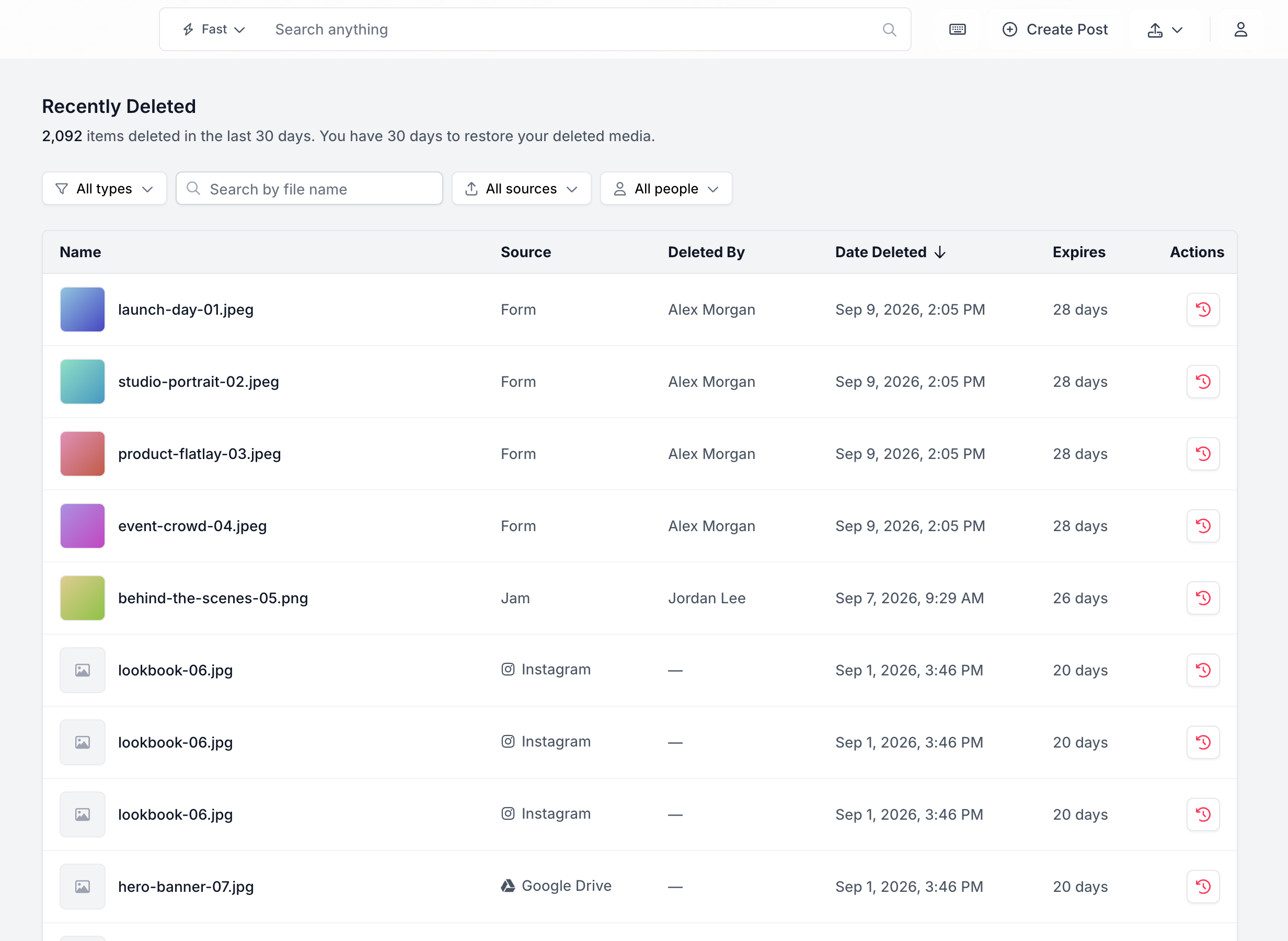
Every deleted file is listed with its Name, Source (where it was uploaded from), Deleted By, Date Deleted and Expires - a countdown to when it's removed for good. The countdown turns amber in the final week.
Filter by type (Images, Videos, Documents), by source, or by the person who deleted it.
Search by file name to find a specific file.
Sort by Date Deleted to see the newest or oldest deletions first.
Recover an asset
Go to Content → Recently Deleted.
Find the item using the filters or Search by file name.
Click the row to open a read-only preview and check it's the right file. The preview shows who uploaded it, who deleted it and when it expires.
Click Recover - from the preview or straight from the row - to restore it to your library.
Deleted edits
The Edits tab works the same way for work deleted from Content → Edits - your saved image edits and carousels. They also stay for 30 days before they're removed.
Tip — After 30 days, deleted media is removed for good — recover anything you need before then.