
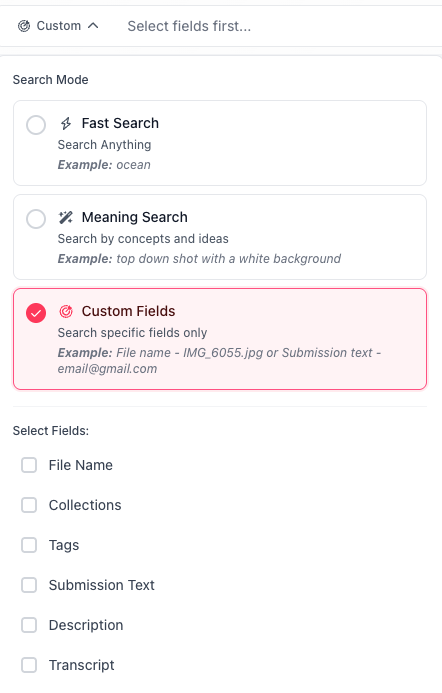
Jam has three search modes so you can find media however you think about it.
The three modes
Fast — keyword search across filenames and tags. Best when you know roughly what it's called.
Meaning — describe what's in the shot in plain English (e.g. "people laughing outdoors") and Jam finds visually matching media.
Custom — combine filters and terms for precise, repeatable searches.
Searching
Click the search bar at the top of the library.
Pick a mode.
Type your query and review the results.
Multi-word searches match tags word by word. Searching pink shorts in Fast mode finds assets tagged pink and shorts separately, not just ones with a single "pink shorts" tag.
When Fast search finds nothing
If a Fast search comes back empty, a small tip - No matches. Try Meaning Search - appears by the search bar. Switch to Meaning and describe the shot instead; it often finds what a keyword can't. The tip shows a few times and then retires.
Tip — Use Meaning search when you can't remember the filename but you remember the photo.