
If your organisation runs more than one Jam workspace, you can share a collection with the others. They see it live and read-only - nothing is copied, so anything you add or change shows up for them straight away. It works for every collection type, and covers the collection's subcollections too.
Share a collection with other workspaces
Go to Content → Collections, open the collection's menu and choose Share with workspaces. You'll also find a Share with workspaces button at the top of any collection you open.
Pick who can see it: Everyone in the organisation (every workspace, including any added later), or Pick workspaces to choose specific ones. Not shared keeps it to your workspace only.
Click Save changes.
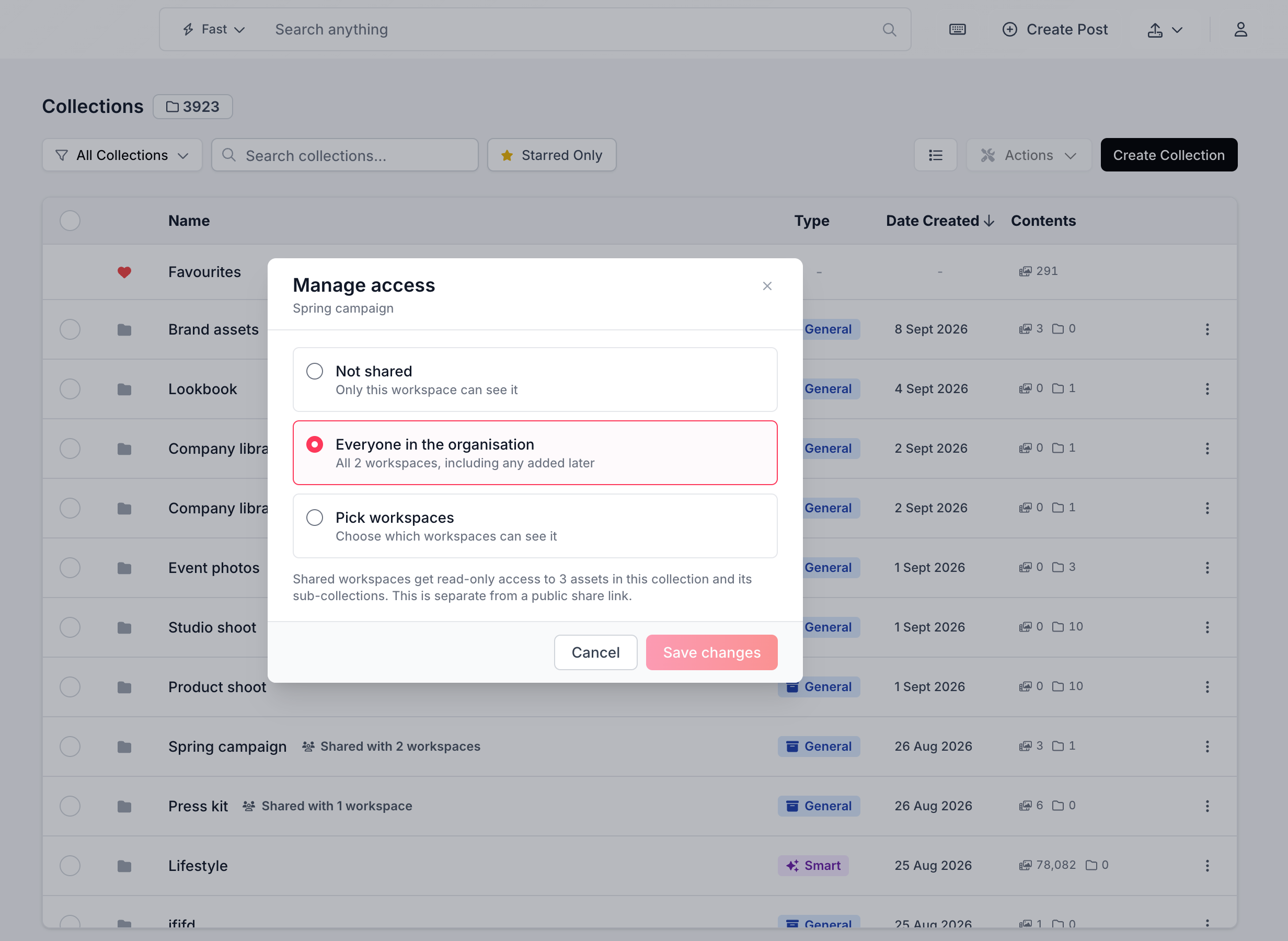
You can also tick Share with workspaces when you create a new collection.
Once a collection is shared, the button and menu item change to Manage access, and the collection shows a Shared with X workspaces marker so you can see how widely it's shared. Removing a workspace asks you to confirm first, because the assets disappear from that workspace as soon as you save. Anything they've already imported stays with them.
What the other workspace sees
Your collection appears in a Shared with you section on their Collections page, marked Read only and showing which workspace shared it.
Each shared asset is labelled Shared from [workspace] in its menu and in the detail view, so it's always clear where it came from.
They can't edit or delete your media, but they can use it. To keep a copy of their own, they choose Import to workspace from an asset's menu, or select several assets and use the bulk menu. Imported copies are labelled Imported from [workspace].
Sharing with workspaces is separate from a public share link - nothing here leaves your organisation. To publish a collection on the web, see Share a collection as a public gallery. Sharing needs collection share permissions, the same as publishing a link.
Tip - Use Everyone in the organisation for brand libraries every team should see. New workspaces get access automatically.