
When your form is ready, click Share Form for everything you need to get it out there.
The Share Form menu
Open Form — preview the live form in a new tab.
Copy Form URL — copy the link to send out.
Show QR Code — generate a scannable QR code (see below).
Embed Form — get the code to put the form on your own site (see below).
Set a custom URL
In Form Settings → Share Link, switch from Default to Custom to choose your own ending. Custom links use your workspace slug as part of the address — for example /acme/form/acmemotorcompanyform. See Create a form.
QR code
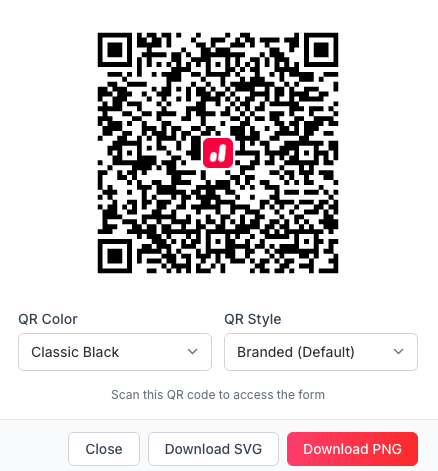
Choose Show QR Code.
Pick a QR Color and QR Style (Branded is the default; Clean and Compact drop the centre artwork).
To put your own logo in the centre of the code, keep the Branded style and click Upload next to the artwork preview. Use Reset to Jam logo to switch back.
Download PNG or Download SVG to use on screen or in print. Your logo is embedded in both.
Embed on your site
Choose Embed Form.
Click Copy Code.
Paste it into your web page where you want the form to appear.
The embedded form automatically resizes to fit its container.
Tip — Put your custom link in your social bio or email footer to keep submissions rolling in.