Manage your team and what they can do under Settings → Users and Permissions. It has two tabs: Users and Roles.
Users
The Users tab lists your active members and pending invites, each with their email, role, last login and workspace.
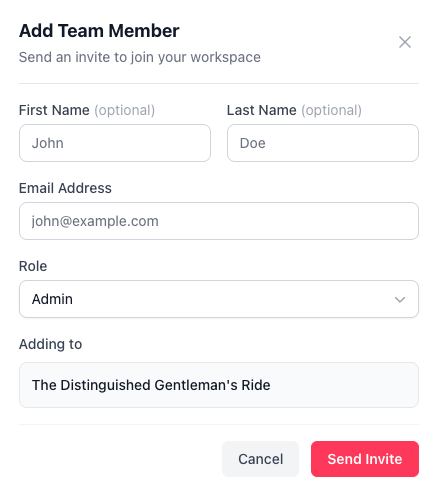
Add User — invite someone with their name (optional), email and role. If you have more than one workspace, choose which one to add them to, then Send Invite.
Pending invites can be re-sent or removed. Admins can also click Copy link on a pending invite row to copy the invite link and share it directly - handy when invite emails aren't getting through.
Change a member's role or workspace, or remove them, from their row.
Roles
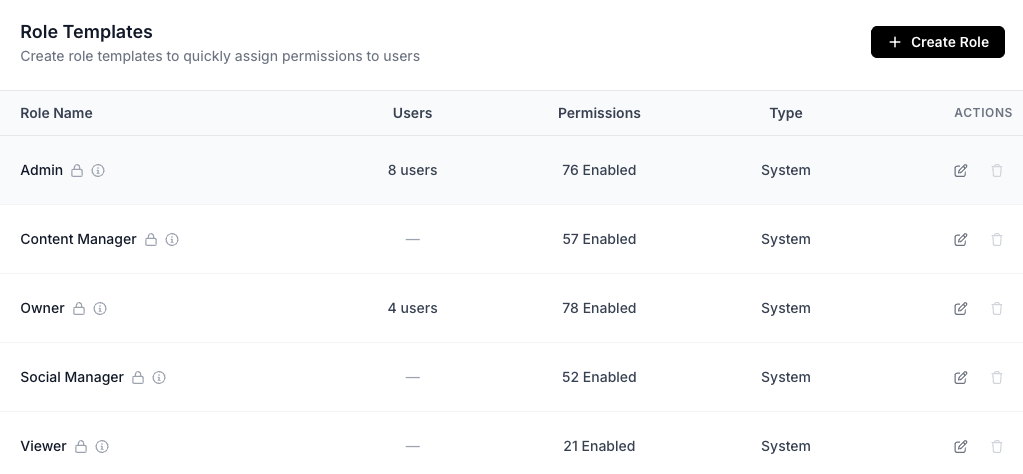
The Roles tab holds role templates that bundle permissions so you can assign access quickly.
System roles come built in — Owner, Admin, Content Manager, Social Manager and Viewer — each with a set number of permissions enabled.
Create Role to make your own, or edit a role to fine-tune its permissions across Collections, Migrations, Shopify, Socials, Forms, Analytics and Settings.
You can also grant permissions for specific Social Groups — so a role can be limited to certain brands or clients.