
Approvals let reviewers sign off posts before they publish — ideal for client work or larger teams. Find them under Socials → Approvals.
Send a post for approval
In the composer's Publish Post step, turn on Requires Approval, then add your reviewers by email. You can allow external reviewers to edit and add a review note for context. See Compose & publish.
Reviewers get an email that links straight to that approval in the right workspace, scrolled into view.
The Approvals page
Posts are grouped into tabs — Mine, In Review, Approved, Rejected and All. Switch between My Reviews and All Reviewers, filter by creator or search, and sort by Newest, Oldest or Scheduled. Each post shows its type, schedule, platforms, caption, who created it and its reviewers — external reviewers carry an External badge. A status chip shows where it's up to: In review, Partially approved, Approved, Changes requested, Withdrawn or Published.
Review a post
Edit or Preview the post, or open the ⋮ menu to Copy Approval Link, Duplicate Post or Delete This Post.
Approve All to approve every platform at once — or use the dropdown to Approve or Reject each platform individually, or Reject All. A partially approved group shows exactly where each platform stands.
Approving or rejecting several posts at once shows a confirmation that says exactly how many posts are affected and what happens to them, before anything changes.
Leave a comment for the creator.
Open Revision History to see the full timeline — every Submitted for review, Commented, Approved and Requested changes event, with who and when. Every edit creates a new submission (Post Version 1 is the original).
Withdraw or re-open a request
Sent something by mistake? Click Withdraw on the request. Add a reason if you like and confirm - it disappears from your reviewers' queues and the posts stay as drafts.
A withdrawn request can be brought back with Re-open Approval; a rejected one can go back with Move to In Review. Existing activity and reviewers stay with the approval.
What happens next
Approved posts automatically go out to be scheduled and publish at their set time.
Rejected posts can be moved back to In Review — edit and resubmit, and a new version is created.
Editing a scheduled post keeps its platform settings - first comments, Reel audio and the rest stay intact.
If a scheduled post is still waiting on approval 15 minutes after its publish time, Jam emails the creator and any reviewers who haven't acted.
External reviewers
Reviewers on a shared approval link don't need a Jam login — they just enter their name. They get a focused workspace with the post, its Activity and comments, and can Approve or Reject each platform. If you've allowed editing, Edit Post lets them change the caption, Add media or adjust the publishing time before approving. Their reviews appear in the history like anyone else's.
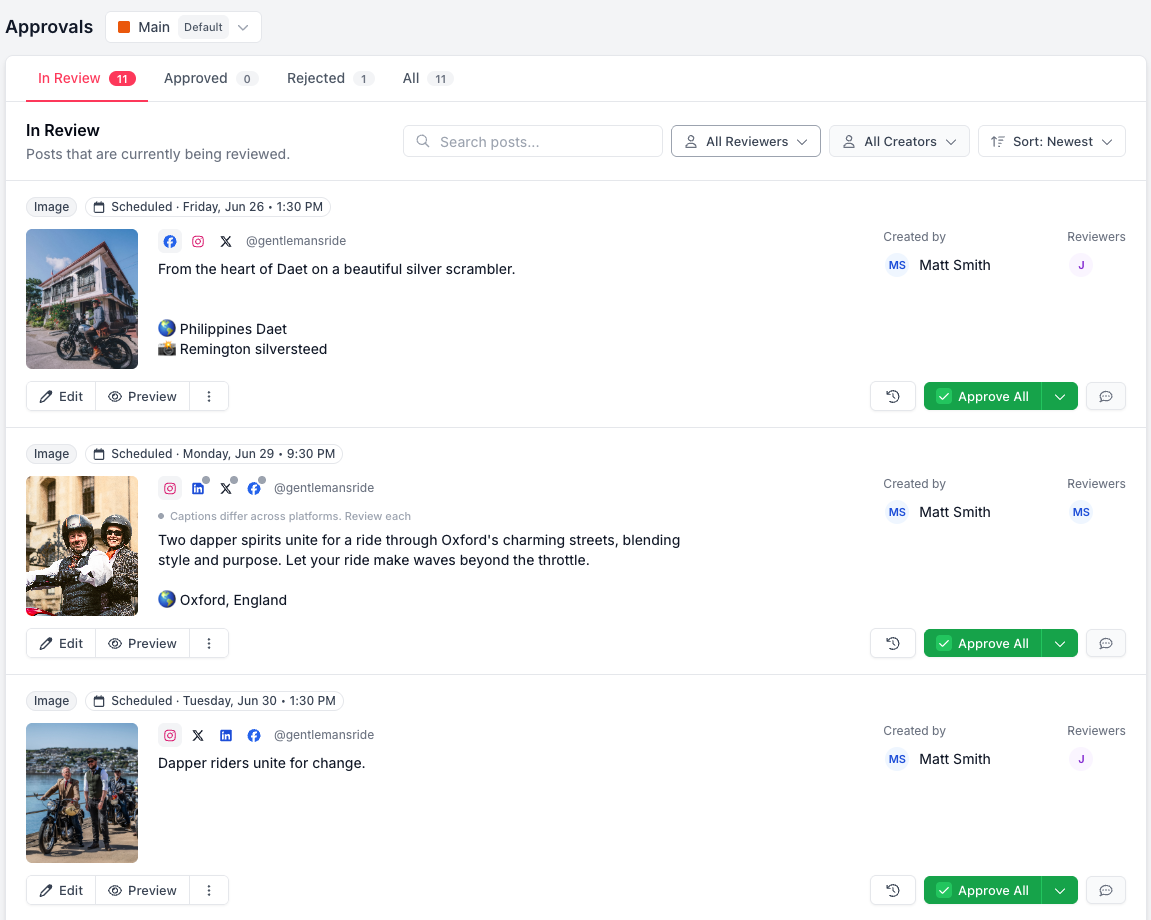
Tip — When captions differ across platforms, Jam flags "Review each" so reviewers check every version.