
The post composer is where you build a post - choose accounts, pick a post type, add media, write a caption and decide how it goes out. A live Post Preview on the right shows how it'll look on each platform.
Build a post
Click Create Post.
Pick a Social Group and the accounts to post to (use Add Another to add more).
Choose a post type, add media and write your caption.
Set any per-platform options, then publish or schedule.
Post types
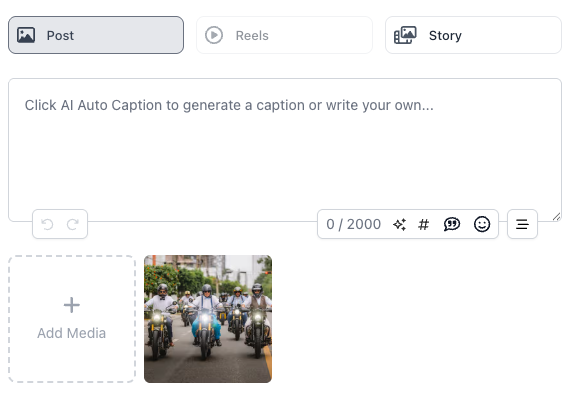
Post - a standard photo or video post. Add more than one item and it becomes a Carousel.
Reels - a vertical video for Instagram or Facebook. For TikTok-only posts the same option is called Video.
Story - available when every selected account is Instagram or Facebook. Videos up to 60 seconds; add several items to post a multi-story set.
Document - available when posting to LinkedIn only; drop a PDF, DOC, DOCX, PPT or PPTX (up to 100 MB).
Text - a text-only post (Facebook, LinkedIn and X).
Adding media
Click Add Media to add photos and videos, and drag media to reorder it.
Carousel limits - Instagram and Facebook take up to 10 items (photos and videos mixed), X up to 4, TikTok up to 35 images, and Pinterest 2 to 5 images in the order you choose. Single-image and video Pins work as before.
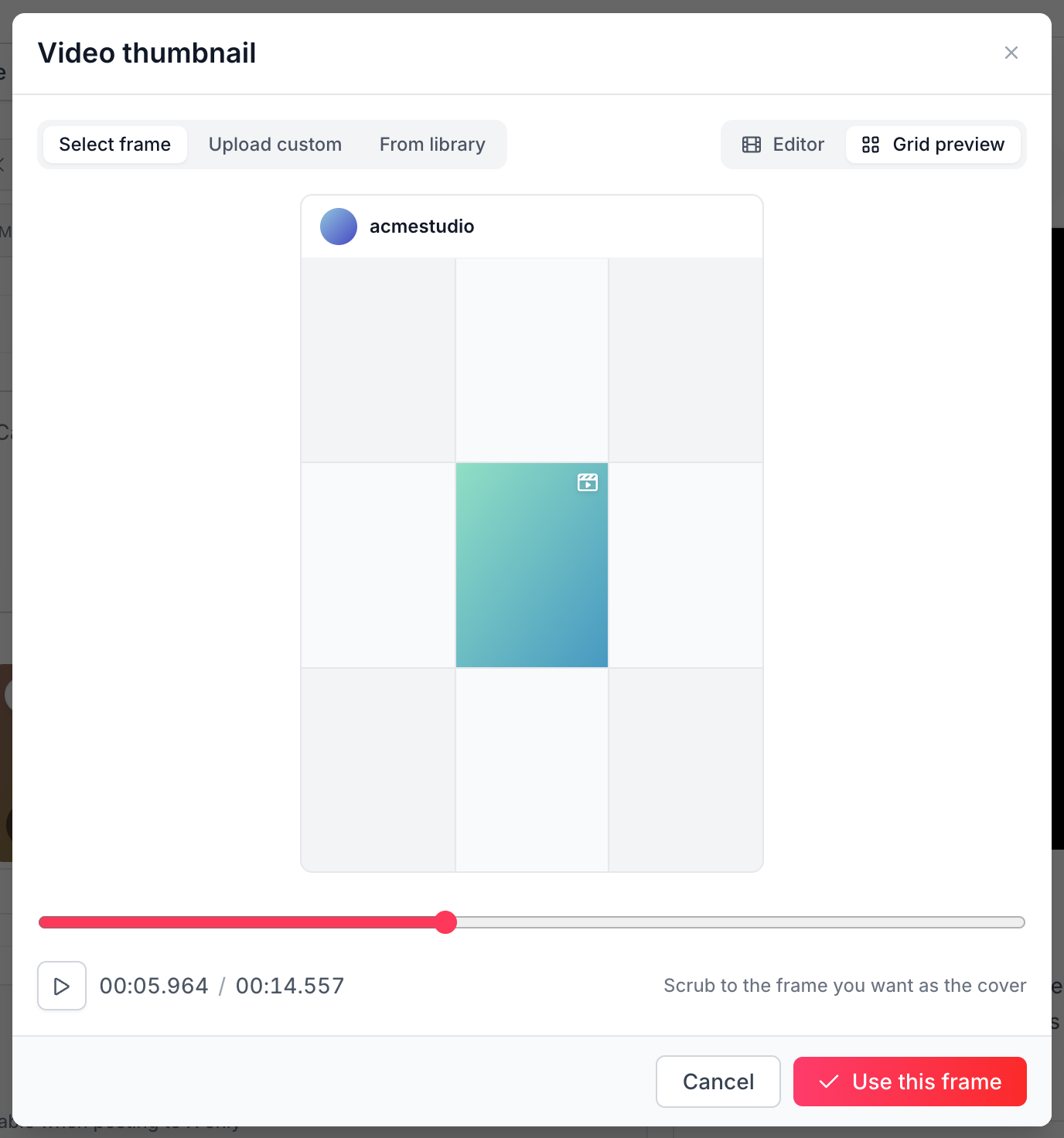
When you add a video, click Add Thumbnail to set its cover - Select frame from the video, Upload custom or pick one From library. Switch to Grid preview to see the cover sitting inside a mock Instagram profile grid before you publish.
To crop or adjust an image before posting, hover it and click the pencil (Edit Media). It opens in the Jam Editor - make your changes and click Done. Those edits stay with the post and are not saved to your library. Videos open the video editor instead. See Crop and adjust.
Writing the caption
Type your caption, or use the toolbar below the field:
Generate AI Caption - writes a caption from your media and brand voice, only when you click it. See AI Auto Caption.
Snippets and hashtags - drop in reusable text. See Snippets.
Emoji, plus undo / redo.
@mentions - with a single account selected, type @ to search. Instagram handles are checked before you schedule, so a typo can't fail a publish: results show Found on Instagram, Previously mentioned (accounts your team has tagged before) or Use as plain text. On LinkedIn, search a person or company page and Jam publishes a real mention. Facebook Pages and X users work the same way.
Customise per account - write a different caption for each account (handy when what works on LinkedIn isn't what works on X). One caption for all switches back.
Per-platform settings
Each connected platform has its own settings section. First comments are drafted per platform, so Instagram, Facebook and LinkedIn each keep their own.
Instagram - Tag Media, Tag Products, Post Collaborators (up to 3), First Comment, Location and a Link In Bio - Post Link. Jam checks whether each collaborator can be tagged as you add them, not at publish time. Personal Instagram accounts can use the location picker when your workspace has a Meta connection. Tagging accounts on a video doesn't ask for a pin position. For video/Reels: Share to Feed, Music, Audio Name and Trial Reel.
Facebook - First Comment (posted after the Facebook post is published), Location and Reel collaborators.
LinkedIn - Visibility, a First Comment (handy for links you don't want in the main post) and Disable resharing; for documents, a Document title.
Pinterest - Select Board (or type a name to create one), Title, Link and Location. Add 2 to 5 images for a carousel Pin.
TikTok - Who can view this video (Everyone, Followers, Mutual Follow/Friends or Only me), Allow Comments, Allow Duet, Allow Stitch, and a content disclosure for promotional posts (Brand Organic or Branded Content). Photo carousels also get a Photo title and Cover image.
X - Create Thread (available when posting to X only).
Approval & campaigns
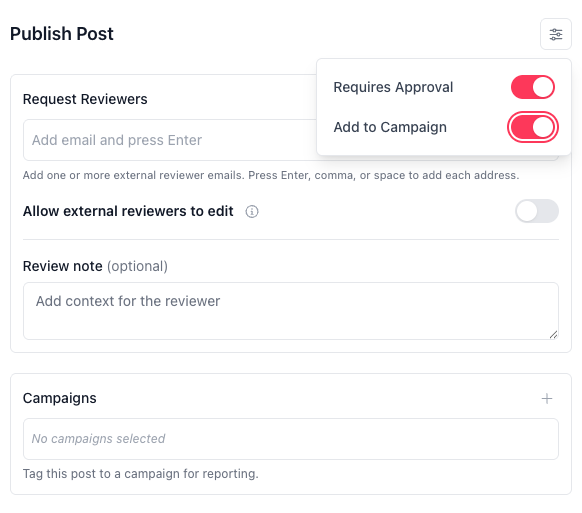
Click the settings icon in Publish Post to switch on:
Requires Approval - send the post to reviewers first. See Approval workflow.
Campaigns - add the post to a campaign for reporting. See Campaigns.
Publish
Finally, choose Post Now, Schedule Post for a date and time, or Next Best Time to let Jam pick. See Schedule a post.
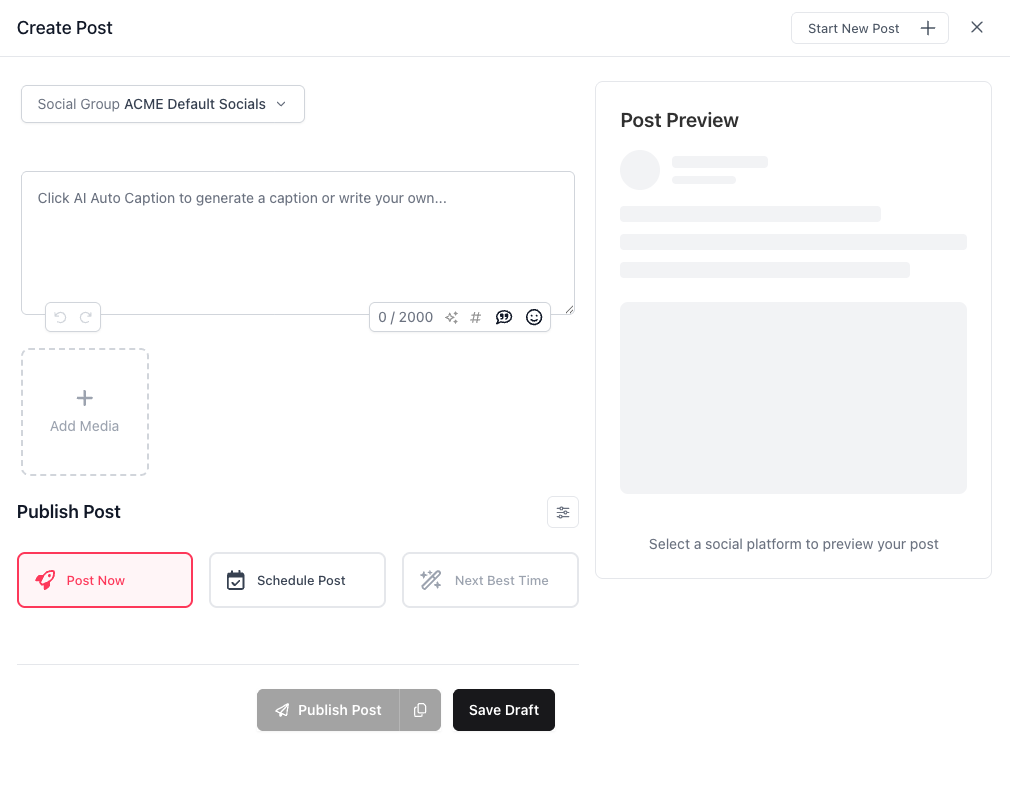
Tip - Keep an eye on the Post Preview to see exactly how your post lands on each platform.