
Asset expiry hides media from your library after a date, without deleting anything. Expired assets leave browse and search, but they keep working anywhere they're already used - scheduled posts, shared links and collections that reference them - and you can bring them back at any time.
Set a workspace-wide default
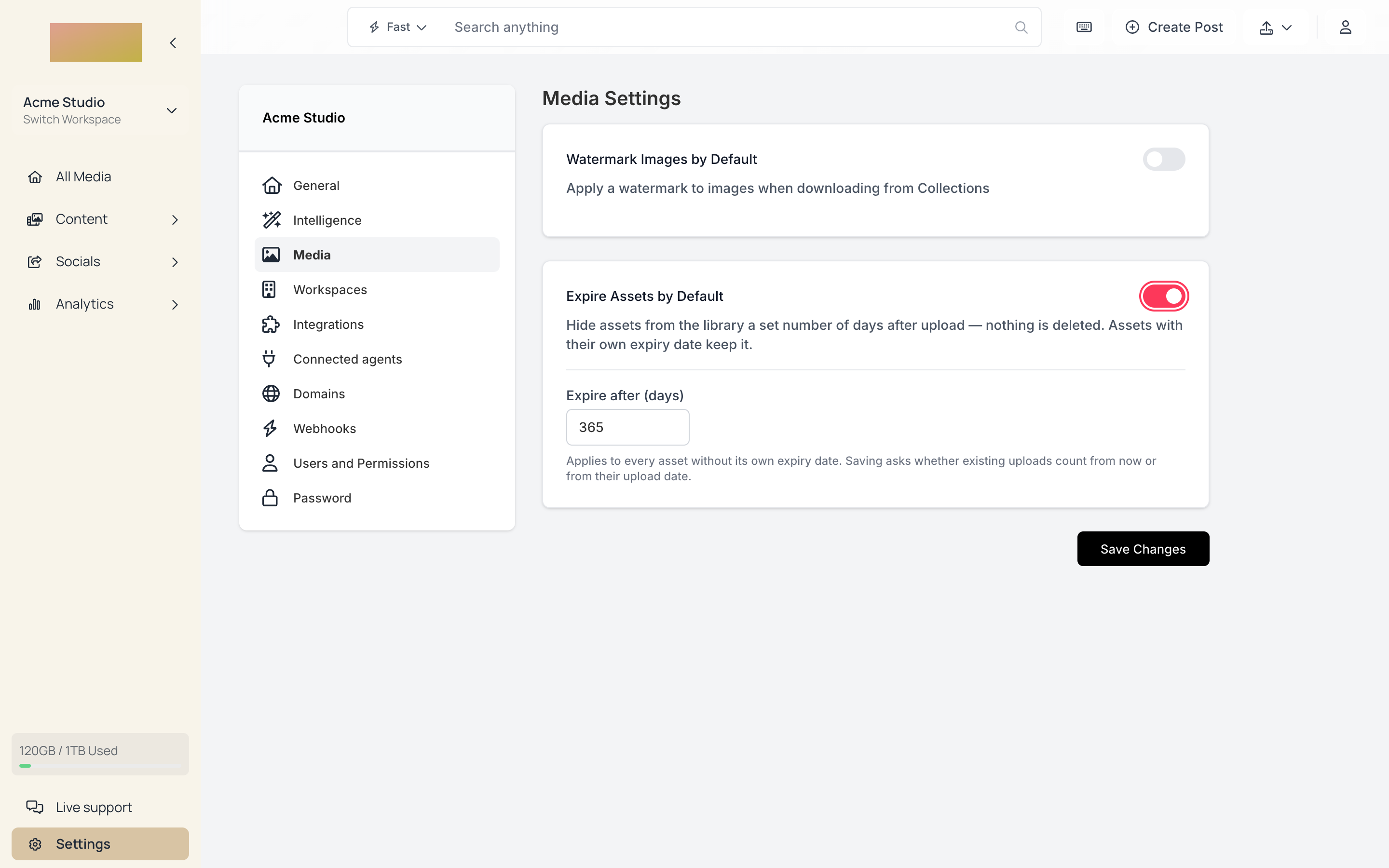
Go to Settings → Media.
Turn on Expire Assets by Default and set Expire after (days).
Click Save Changes. Jam tells you how many assets are affected and asks whether existing uploads count from now or from their upload date, then applies the change in the background.
From then on every new upload gets a hide date automatically. Assets with their own expiry date keep it. Turning the setting off clears the default from your assets and they all return to the library.
Set a date on one asset
Click the item to open its detail view.
Choose Set expiry from the More (…) menu. If the asset already has a date, click its Expiry line in the sidebar instead.
Pick a preset - Now, In 30 days, In 6 months or In 1 year - or choose a day in the calendar, then click Save changes.
Now hides the asset the moment you save. A date you set by hand always wins over the workspace default.
Set a date across a selection
Select the items in the grid.
Open More in the selection toolbar and choose Set Expiry.
Pick a preset or a day and click Set expiry.
Find expired assets
Open Filter above the grid and turn on Expired only under Expiry. The grid switches to showing just your expired media, so you can review it, reuse it or clear its date. See Filter your media.
Clear an expiry date
Open the asset, click its Expiry line in the sidebar, choose Never expires and save. It returns to browse and search straight away. To clear a date from many assets at once, select them, choose Set Expiry and pick Never expires.
Tip - Expiry suits seasonal campaigns: set the date when you upload and the library tidies itself when the season ends.