
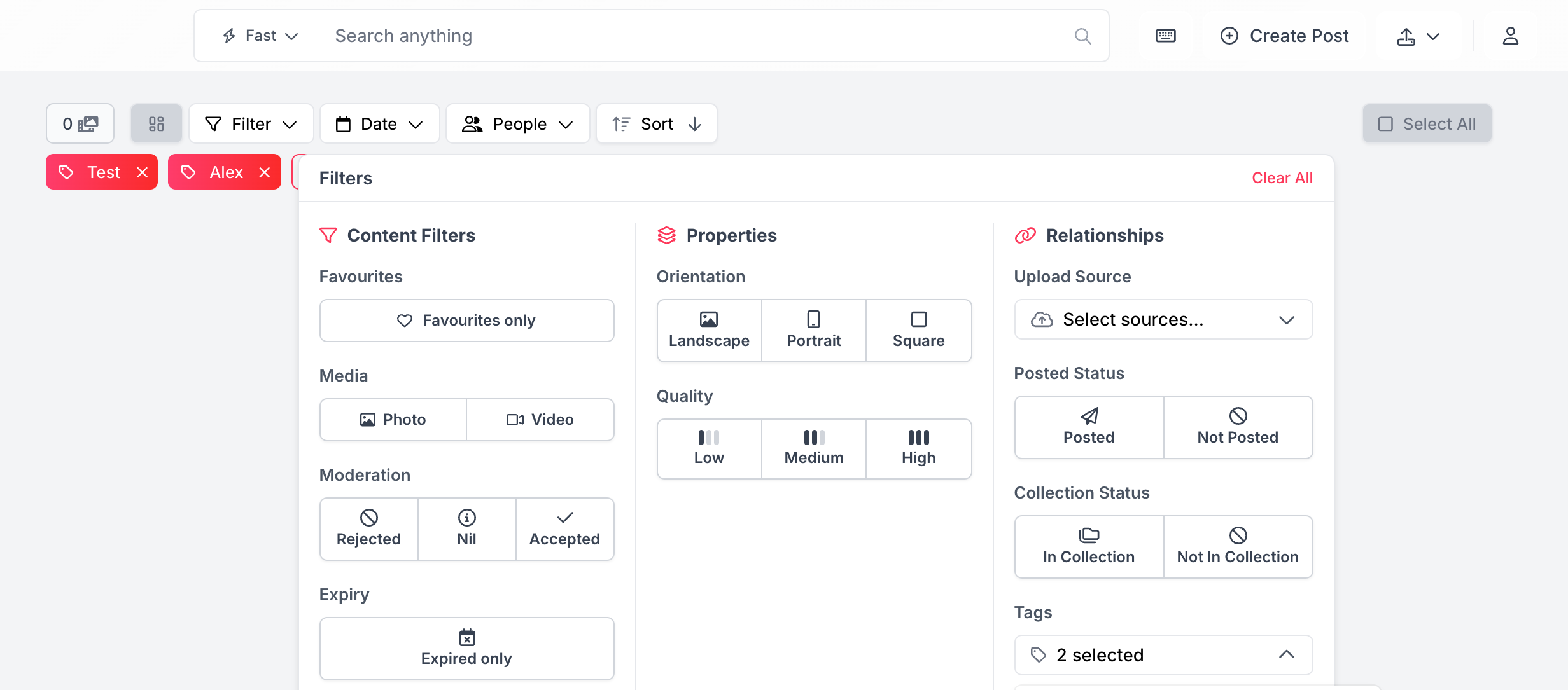
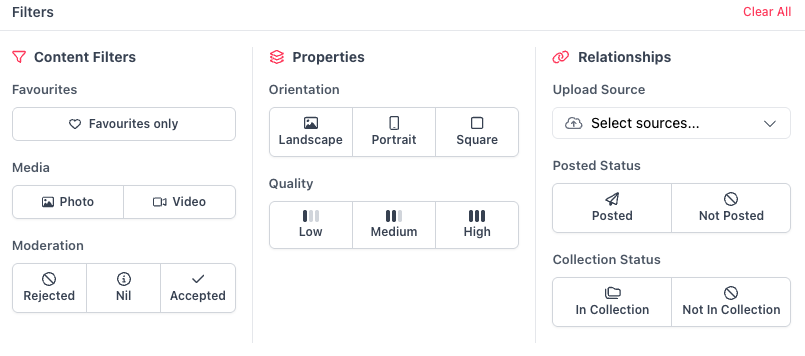
Filters narrow your library down to exactly what you're looking for. Open Filter above the grid, combine any options, and the grid updates instantly — click Clear All to reset. The same row also has Date, People and Sort.
Content filters
Favourites — show only media you've starred (Favourites only).
Media — Photo or Video. Pick Video and you can also narrow by Video Duration.
Moderation — Rejected, Nil or Accepted. See Moderation.
Expiry - turn on Expired only to see media that has passed its expiry date. Expired assets are hidden from the grid and search until you do. See Set an expiry date on media.
Properties
Orientation — Landscape, Portrait or Square.
Quality — Low, Medium or High.
Image File Type and Video File Type - JPEG, PNG, HEIC, MP4, MOV and so on.
Relationships
Upload Source — filter by where the media came from: Web, Form, Mobile, Desktop, Google Drive, Dropbox, SharePoint, Canva, Unsplash and more. Choose Form and you can pick specific forms.
Posted Status — Posted shows media you've already published to social; Not Posted shows media you haven't used in a published post yet — handy for finding fresh content to share.
Collection Status — In Collection or Not In Collection. Choose In Collection and you can pick which collections.
Tags - filter by your own custom tags. Pick one tag or many, then choose Any (media with any selected tag) or All (media carrying every selected tag). The Tags section appears once you've added custom tags to your media.
People
Once you've named people, a People button appears next to Filter. Search for a person, or several, and choose whether media must include any or all of them. See Find photos by person.
Tip — Combine Not Posted with a tag to surface ready-to-use content you haven't shared yet.