
Photo editing in Jam happens in the Jam Editor, a full image editor built into the app. Open a photo's detail view and click Edit in Jam, or choose ⋯ → Edit in Jam on a grid tile.
What you can do
Crop, straighten and adjust - ratio presets, Finetune sliders and Looks. See Crop, straighten and adjust.
Add text - fonts, colours, outlines and reusable text elements. See Add text.
Add elements - shapes, lines and your own images as layers. See Shapes, lines and images.
Templates - save a design and apply it to other photos. See Templates.
AI Edit - describe a change in plain English, remove the background or fill expanded space. See AI Edit.
Carousels and Bulk Crop - work on several images at once. See Create a carousel and Bulk Crop.
Every save creates a new image in your library and leaves the original untouched, and your work autosaves under Content → Edits so you can come back to it. For the full tour, start with Meet the Jam Editor.
Edit in Canva
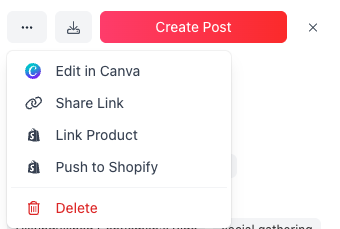
Prefer Canva? From the detail view's More (…) menu, choose Edit in Canva to open the image in Canva, then bring your edited version back into Jam. Connect Canva first under Settings → Integrations.
After editing in Canva, click Return to Jam to bring the edited version back into your library.
Tip - Edit in Canva only supports JPG and PNG files - for anything else, use the Jam Editor.