
Open Email Settings on your form to configure the emails sent when someone submits. There are three, each on its own tab: a Confirmation Email to the person who submitted, an Internal Notification to your team, and People Review, which asks uploaders to name the people in their photos.
Confirmation Email (external)
A branded email sent to the person who submitted the form, confirming you've received it. Set the From Name, Subject and Email Content, and brand it with the logo options below.
Internal Notification (your team)
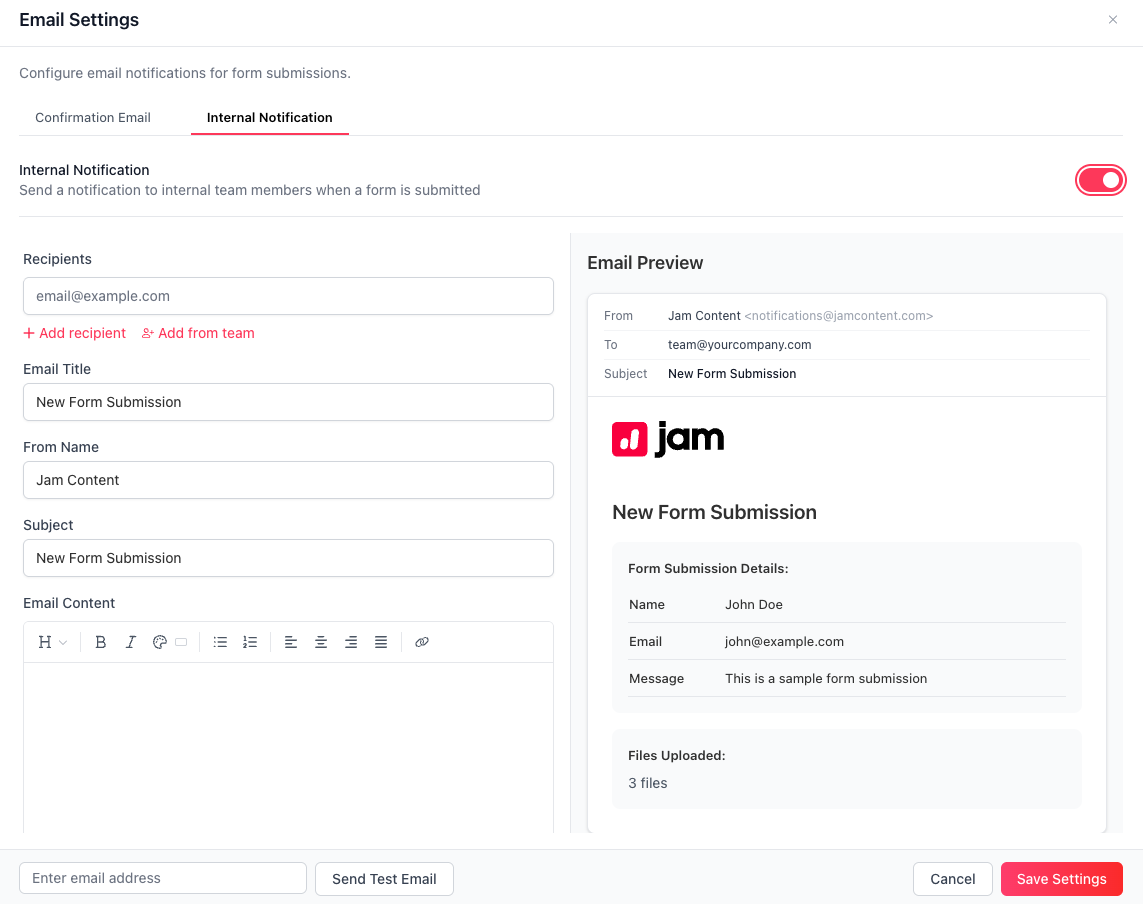
Turn this on to notify your team whenever the form is submitted. You control:
Recipients — add addresses one by one with Add recipient, or pull people in with Add from team.
Email Title, From Name and Subject — the heading and sender details.
Email Content — your own message, with rich-text formatting.
People Review (uploaders name faces)
Switch on Ask uploaders to name people and each uploader gets one email once their photos are processed, with a link to name the faces Jam found - no login needed. Set the subject and content the same way as the other emails. This works independently of the confirmation email. See Let form uploaders name the people in their photos.
Branding & content options
These shape how each email looks and what it includes:
Hide Jam Logo — remove the Jam logo from the email template.
Custom Logo — upload your own logo for the template.
Show Form Data — include the submitted field data (name, email, message).
Show Media Count — include how many files were uploaded.
Show Collection Link — append a link to the submission's collection at the bottom — handy on the internal email for jumping straight to the media.
Test before you save
Enter an address in Enter email address and click Send Test Email.
Check the result, then click Save Settings.
Tip — Use Add from team so the right people are notified, and switch on Show Collection Link to reach each submission's media in one click.