
There are a few ways to get help while you use Jam - from the help centre you're reading now to a live chat with the Jam team.
Live support chat
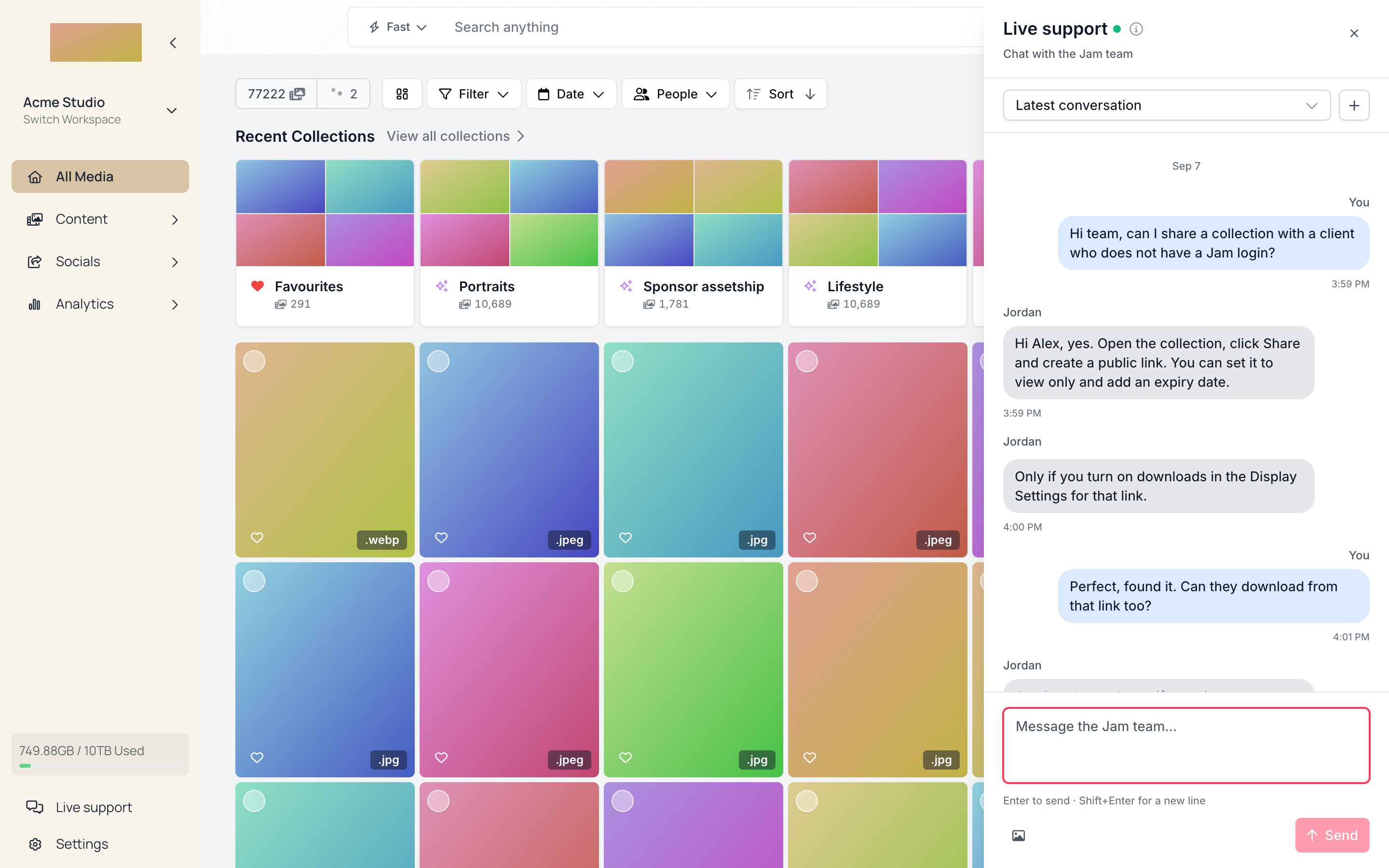
Live support sits in the bottom-left corner of the sidebar, just above Settings. Click it to open a chat drawer over the page you're on.
Your draft and conversation history stay intact as you move around the app - close the drawer, keep working and pick up where you left off.
Replies show the responder's name and avatar, and you can attach images to your messages.
An unread count appears on the launcher when the team has replied.
The status dot at the top of the drawer shows whether support is online, with support hours in Sydney time. Outside those hours, leave a message and the team will get back to you when they're back.
Press Enter to send and Shift+Enter to add a new line.
Use New conversation to start a fresh thread at any time. Your previous conversation resolves automatically and stays in your history so you can read it later.
Live Support chat is available on Enterprise plans. If it isn't showing in your sidebar, use the options below.
Help centre
Choose Help Docs from your profile menu (top right) to come back to these articles at any time. Each category in the left menu covers one area of Jam - start with Welcome to Jam and Find your way around Jam if you're new.
Contact the team
Choose Contact from your profile menu to reach the Jam team through the contact page. This is the best option if you're not on an Enterprise plan or you need to send something longer than a chat message.
Check platform status
If something looks down, check status.jamcontent.com for live platform health and incident updates before you get in touch.
See what's new
New features are announced inside Jam. Choose What's New from your profile menu to read the latest updates - see Find your way around Jam for how the nudge card and sidebar dots work.
Tip - When you ask for help, include a link to the media, post or collection you're asking about and the workspace you're in. It helps the team find it straight away.