
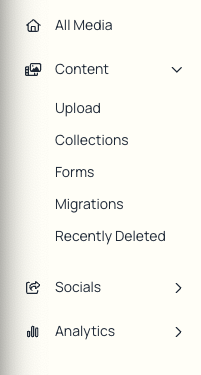
Jam is organised around a left sidebar. Here's what each area does so you always know where to go.
The main areas
All Media — your whole library of photos and videos.
Content — everything that feeds your library: Upload, Collections, Edits, People (faces Jam has found and named), Forms (UGC forms for collecting content from creators and customers), Migrations and Recently Deleted.
Socials — the Calendar and post composer, Approvals, the Inbox for DMs, mentions and comments, Grid Planner, Link in Bio, Carousels and Manage for your connected accounts, groups, snippets and campaigns.
Analytics — Social performance across your connected platforms and Media analytics for your library.
Settings — at the bottom of the sidebar: your workspace, team, roles, integrations and billing. See Company settings overview.
Search anything
Use the search bar at the top to find media, posts and collections fast. See Search your media for the three search modes.
What's New
When new features land, a small What's new card appears above the sidebar and a dot marks the sidebar items that changed - hover the dot to see what's new there. Choose What's New from your profile menu (top right) to read the full update; opening it marks everything as read across all your devices.
Get help
On Enterprise plans, Live support sits just above Settings in the sidebar. Everyone can reach the help centre and the Jam team from the profile menu. See Get help and Live support.
Tip — Your profile menu (top right) is where you switch workspaces and sign out.