
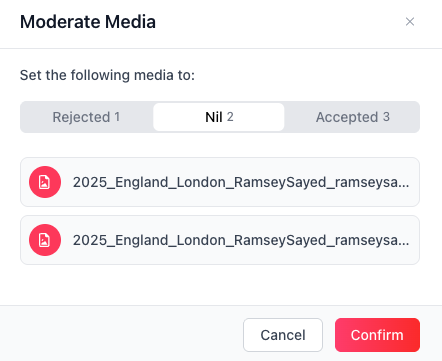
Moderation marks whether a piece of media is cleared for use. Every item has one of three states, and you can set it on a single item or many at once.
The three states
Nil — the default. The item hasn't been reviewed yet.
Accepted — reviewed and cleared for use.
Rejected — not cleared. Jam shows a warning if you try to post rejected media to social, so nothing goes out by mistake.
Moderate media
In Media, select one or more items (or open an item's detail view).
Press M, or choose Moderate Media from the selection toolbar's More menu.
Set the state to Accepted, Rejected or back to Nil.
You can also filter the library by moderation state — see Filter your media.
Tip — Reject anything you don't have the rights to use — the post-time warning is your safety net.