
Media settings control default watermarking and asset expiry for your library. Go to Settings → Media.
Watermark images by default
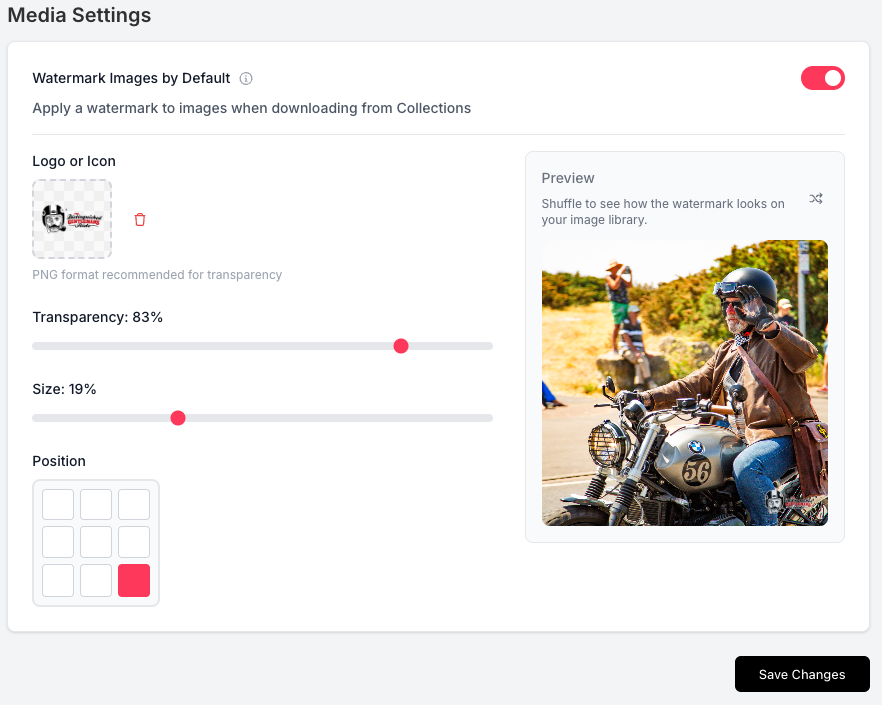
Turn on Watermark Images by Default to apply a watermark to images when they're downloaded from Collections. Then set:
Logo or Icon — your watermark image (PNG recommended for transparency).
Transparency and Size — how subtle and how big it is.
Position — where it sits on the image (a 3×3 grid).
A live Preview shows how it looks — use Shuffle to try it on different images. Click Save Changes when done.
Expire assets by default
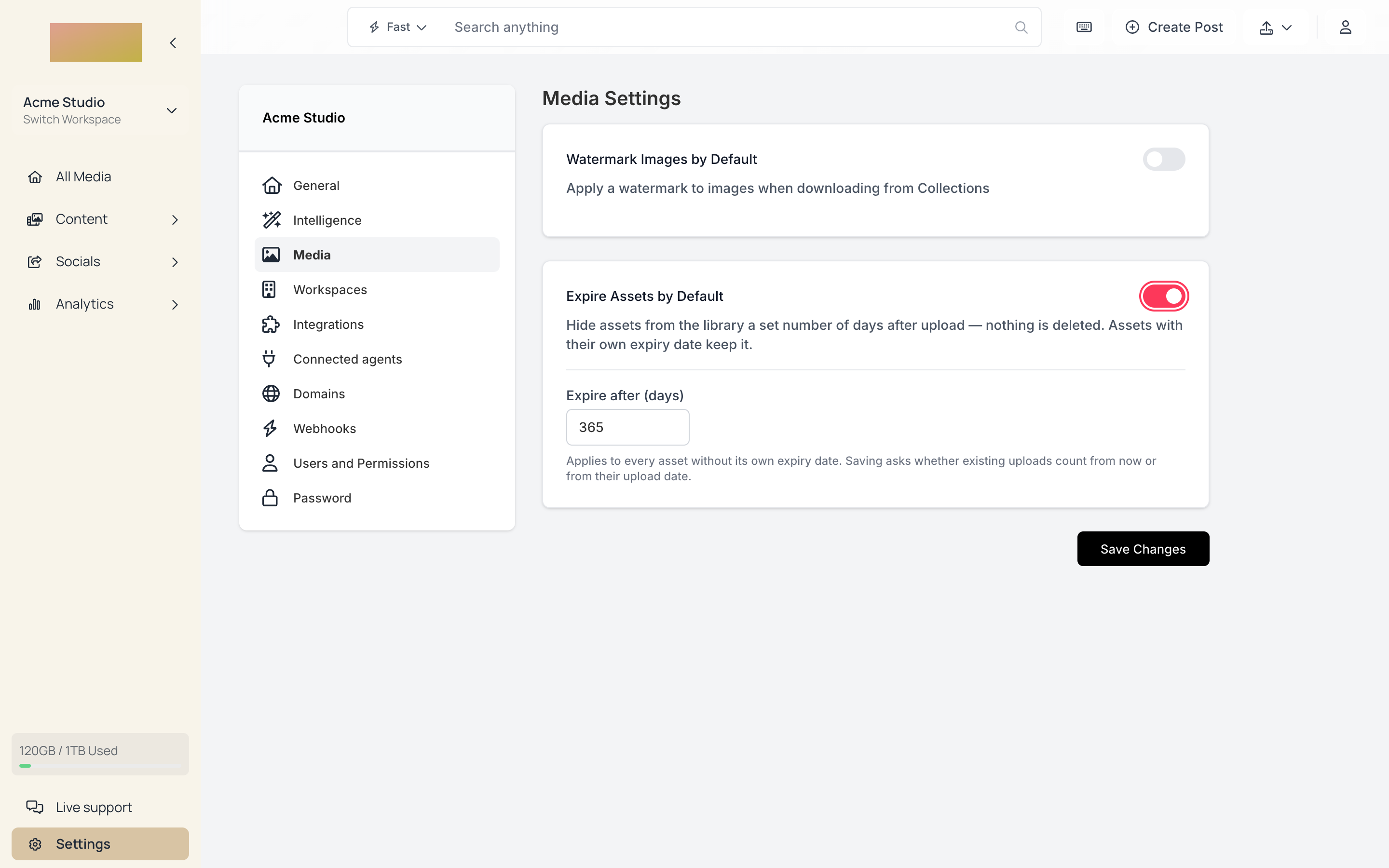
Turn on Expire Assets by Default to hide assets from the library a set number of days after upload. Nothing is deleted - expired assets just leave browse and search, and keep working in scheduled posts and links.
Expire after (days) - how long a new upload stays visible. This applies to every asset without its own expiry date; assets with a date set by hand keep it.
When you Save Changes, Jam shows how many existing assets are affected and asks whether to count their days from now or from their upload date.
Turning the setting off clears the default from your assets so they all return to the library. Your day count is kept for when you turn it back on.
To find hidden assets, use the Expired only filter on the media page. For per-asset and bulk expiry dates, see Set an expiry date on media.
Tip — Keep transparency high and size modest so the watermark protects without distracting.