
Social Notes are notes you pin to a date on your Social Calendar — handy for reminders, campaign milestones or context for your team, sitting right alongside your scheduled posts.
Add a note
Open Socials → Calendar.
Hover over any day and click the Note button.
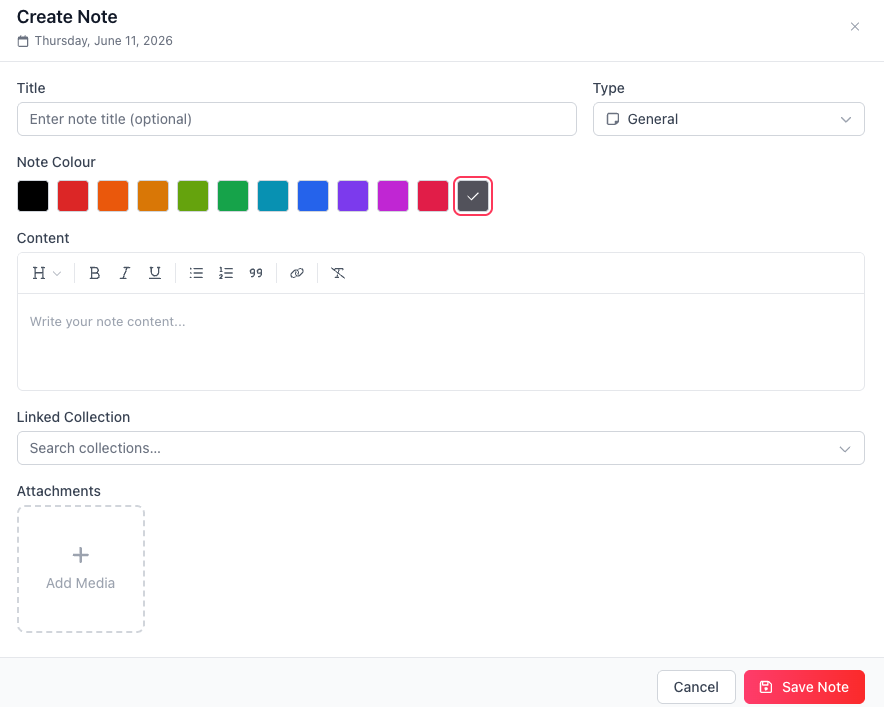
Fill in the note (see below) and click Save Note — it appears on that day.
What you can add
Title — an optional heading.
Type — categorise the note (e.g. General).
Note Colour — colour-code it on the calendar.
Content — your note text, with rich-text formatting.
Linked Collection — link a collection for quick reference.
Attachments — add media to the note.
Move or edit a note
Drag a note to another day to move it — Jam confirms the new date.
Click a note to view, edit or delete it.
Tip — Notes can appear on a calendar you share with clients, so everyone sees the plan.