
Collections group related media together — by campaign, theme, client or anything else that helps you find content fast. Collections can also contain subcollections, so you can nest them however you work.
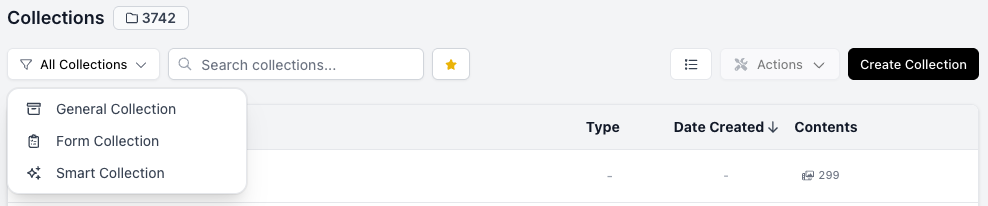
Three kinds of collection
General collection — you add media manually. Best for hand-picked sets like a single campaign. See Create a General collection.
Smart collection — media is added automatically based on rules you set (e.g. a tag). Best for sets that keep growing. See Set up a Smart collection.
Form collection — created automatically from a UGC form, but only when the form is set to store media in collections per submission. See Create a form.
Find a collection
All Collections — filter the list by type (General, Form or Smart).
Search collections — search by name; it looks through subcollections too.
Starred Only — show just the collections you've starred. Star a collection to keep your favourites within reach.
Recent collections in your media grid
On your main media page, a Recent Collections strip sits above the media grid with your most recently active collections, so you can jump back into one without leaving your library. Click View all collections to go to the full list.
Views
Switch between Grid and List from the view toggle. In Grid view each collection card previews its first four items. List view shows each collection's Type, Created date and Contents (item and subcollection counts).
Move collections by drag and drop
Drag a collection onto another to nest it inside as a subcollection - select several first to move them together. Changed your mind? Press Cmd/Ctrl+Z straight after to put them back where they were.
Bulk actions
Select one or more collections, then open Actions:
Download Collections — download the selected collections.
Move to Collection — nest them inside another collection.
Delete Collections — remove the selected collections.
Use Create Collection to start a new one.
Share a collection
Publish it as a public gallery for clients or your audience. See Share a collection as a public gallery.
Share it with other workspaces in your organisation - choose Share with workspaces from a collection's menu to give them live, read-only access. See Share a collection with other workspaces.
Tip — Hover the folder icon on any collection to preview the content inside without opening it.