
Connect your social accounts to Jam so you can schedule, publish and track posts across every platform from one place.
Platforms you can connect
Facebook, Instagram, TikTok, LinkedIn, YouTube, X and Pinterest — plus Google My Business (rolling out). Each connects through a secure login on the platform's side.
How to connect
Go to Socials → Manage → Accounts.
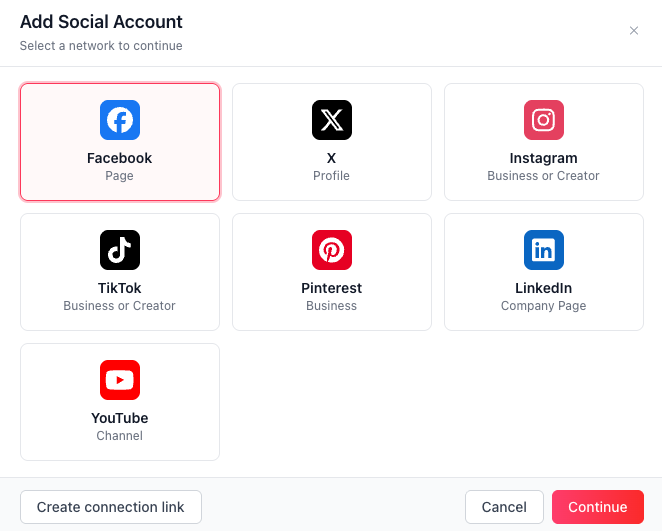
Click Add Social Account.
Choose a network, click Continue and finish the login.
Manage your accounts
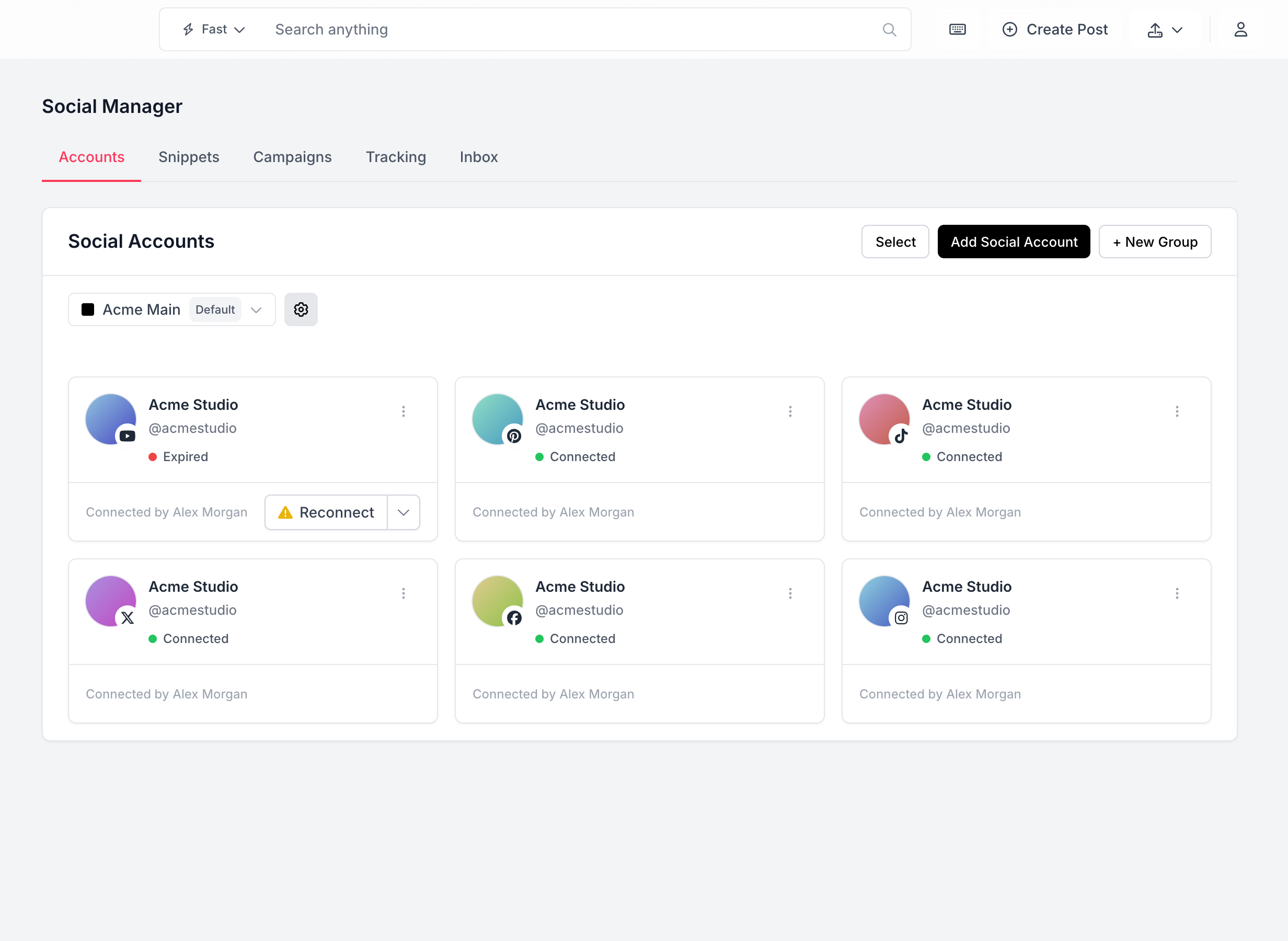
Each account is a card on the Accounts page:
Who connected it - the card footer shows Connected by and the teammate's name, so you know whose login the connection belongs to.
Connection status - Connected, Reconnect account or Expired. Anything other than Connected shows a Reconnect button on the card. See Reconnect an expired account.
More (⋮) menu - View Profile, Default Settings, Reconnect, Send Reconnect Link, Move to Group and Remove Account.
Move several accounts to another group
Click Select at the top of the Accounts page.
Tick the accounts you want to move.
Click Move to Group in the bar that appears, choose the destination group and confirm.
Click Cancel Selection to leave select mode without moving anything. To move a single account, use ⋮ → Move to Group on its card.
Connect via a connection link
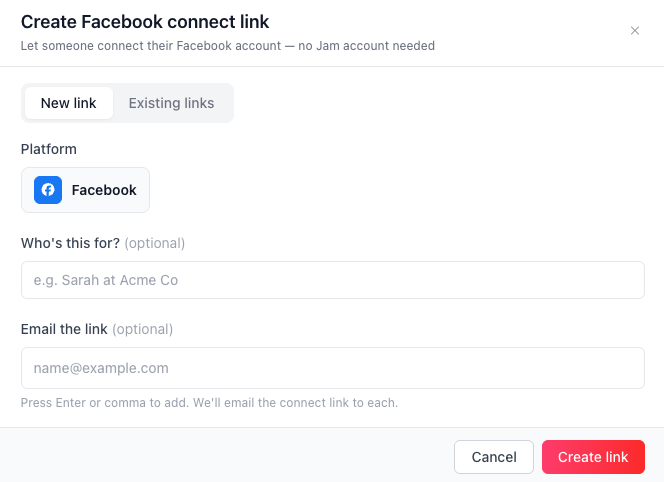
To let a client or partner connect their own account without a Jam login, click Add Social Account, pick the platform and choose Create connection link. Add a label and one or more email addresses and Jam sends them a page where they authorise the connection into your group. See Connect an account with a shared link.
Tip - When a connection needs refreshing, the Calendar shows a warning that an account needs to be reauthorised - click it to jump straight to the Accounts page.