
Import your Link in Bio page from Linktree or Later
Updated September 19, 2026
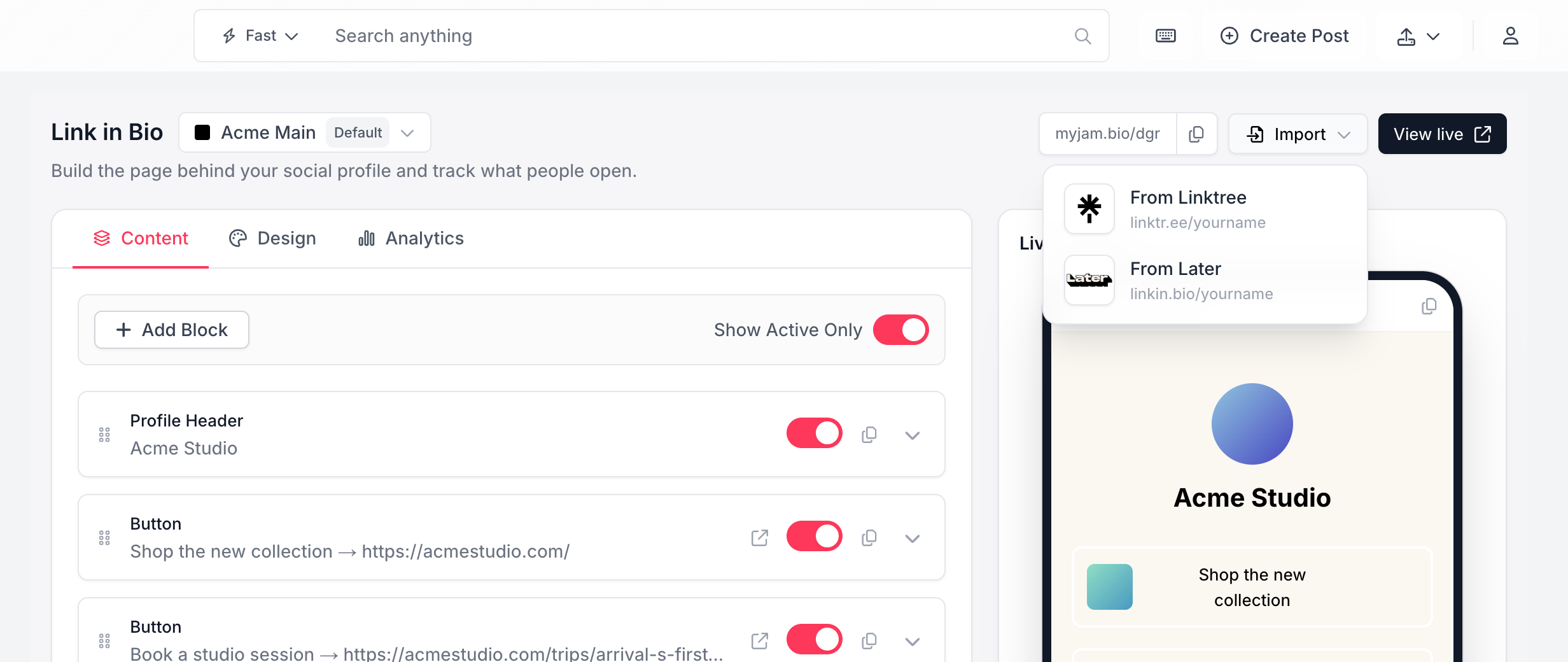
Already have a page on Linktree or Later? Bring it across instead of rebuilding it block by block. Jam reads your public page and turns it into editable blocks on your Link in Bio page.
Import your page
Go to Socials → Link in Bio, click Import at the top of the page and choose From Linktree or From Later. If your page is still empty, the same options sit on the Content tab.
Paste your Public page URL - for example linktr.ee/yourname or linkin.bio/yourname - and click Preview import.
Review what Jam found: how many Blocks, Links, Socials and Images it picked up, and the Imported structure listed block by block. Anything Jam can't bring across is greyed out with a note explaining why.
If your page already has blocks, choose how Jam should add it: Replace current page or Add below current blocks.
Click Confirm Import. Nothing changes until you do.
What comes across
Your profile details, active links, social icons, images and linked posts, plus the closest matching theme for the Design tab.
A Linktree Instagram feed comes in as a live, editable grid with each image's link preserved, so the links your followers already tap keep working.
Everything lands as normal blocks, so you can reorder, edit or switch any of them off afterwards. See Add content blocks.
Good to know
The page has to be public - Jam reads it the same way a visitor would.
Replace current page needs permission to delete blocks. If you only see the option to add below your current blocks, that's why.
Tip - Import first, tidy the page, then switch the bio link on each platform to your jam.bio address. See What is Link in Bio?.