
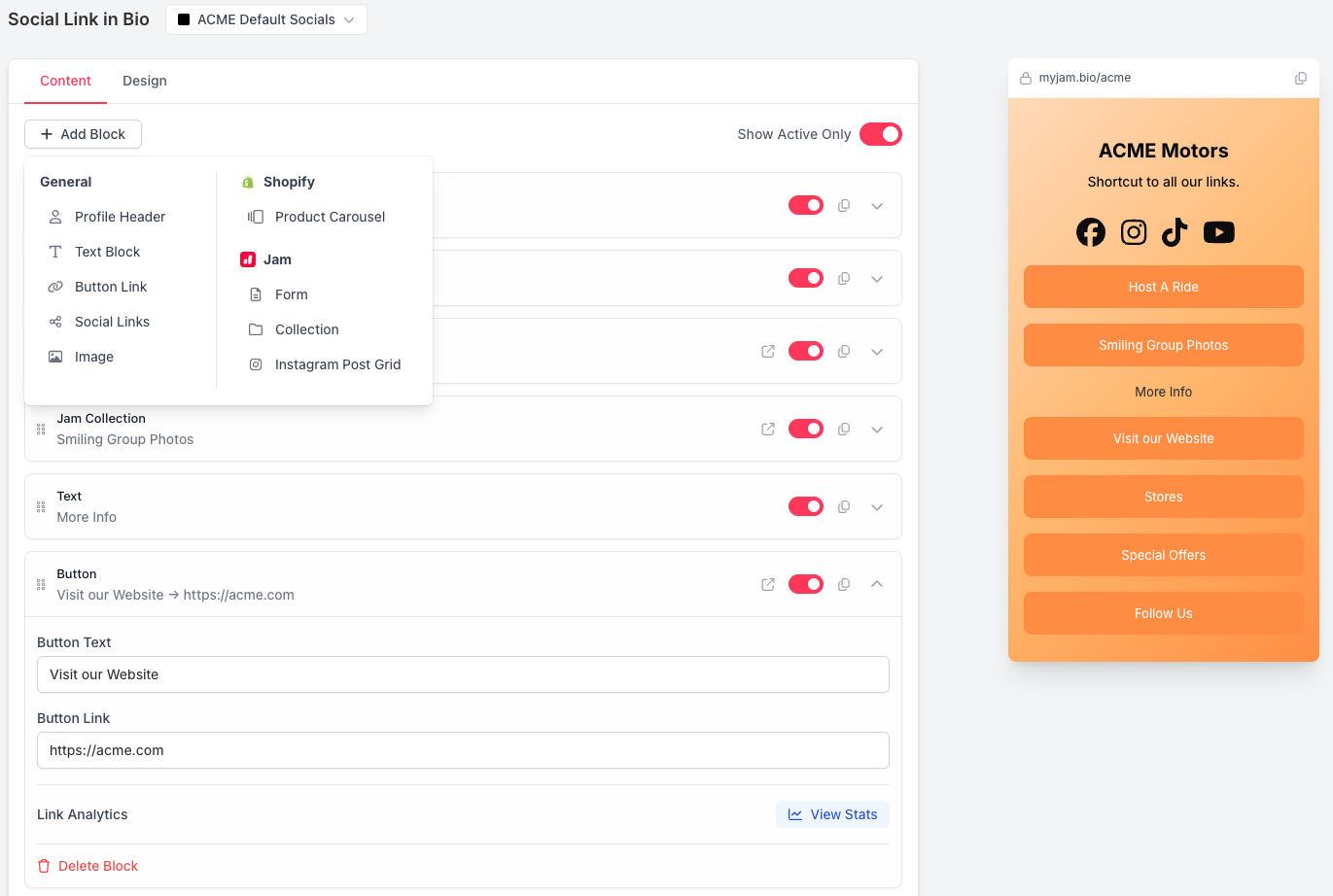
Build your Link in Bio page on the Content tab. Click Add Block, then arrange blocks by dragging their cards. Each block can be toggled on or off and duplicated, and Show active blocks only hides anything switched off.
Block types
The block picker groups blocks into General, Shopify and Jam:
Profile Header — your avatar, name and tagline.
Text Block — a block of text.
Button Link — a labelled button to any URL.
Social Links — icons linking to your social profiles.
Image — an image, optionally linked.
Card Gallery - a set of image cards, each with its own link (below).
Product Carousel (Shopify) — show Shopify products (below).
Form, Collection and Instagram Post Grid (Jam) — pull in your Jam content (below).
Card Gallery
Add a title, then add cards - each with an image, an optional title and description, and a destination link. Choose a Layout (Grid, Carousel or Stack), the number of Columns, and an aspect ratio (Square, Portrait or Wide). Pages imported from Linktree or Later often arrive with a gallery already filled in.
Form
Embed a UGC form so followers can submit content. Pick the form, choose a Display Mode — Link or Embed (the form expands inline when clicked) — and set the Button Text.
Instagram Post Grid
Show your latest published Instagram posts that have a Link In Bio - Post Link set — each post links to its assigned URL. Choose the account and how many posts to show (Latest 9 / 12 / 15 or All). Set the post link when scheduling. See Compose & publish. If you imported a Linktree page, its Instagram feed appears here as an Imported Instagram feed with each image's link kept - see Import your Link in Bio page from Linktree or Later.
Product Carousel
Showcase Shopify products. Choose a Display Mode (Carousel or Stacked), search and add up to 10 products, and optionally Hide Price. Connect Shopify first — see Connect your Shopify store.
Tip — Turn on Show active blocks only to preview exactly what visitors will see.