
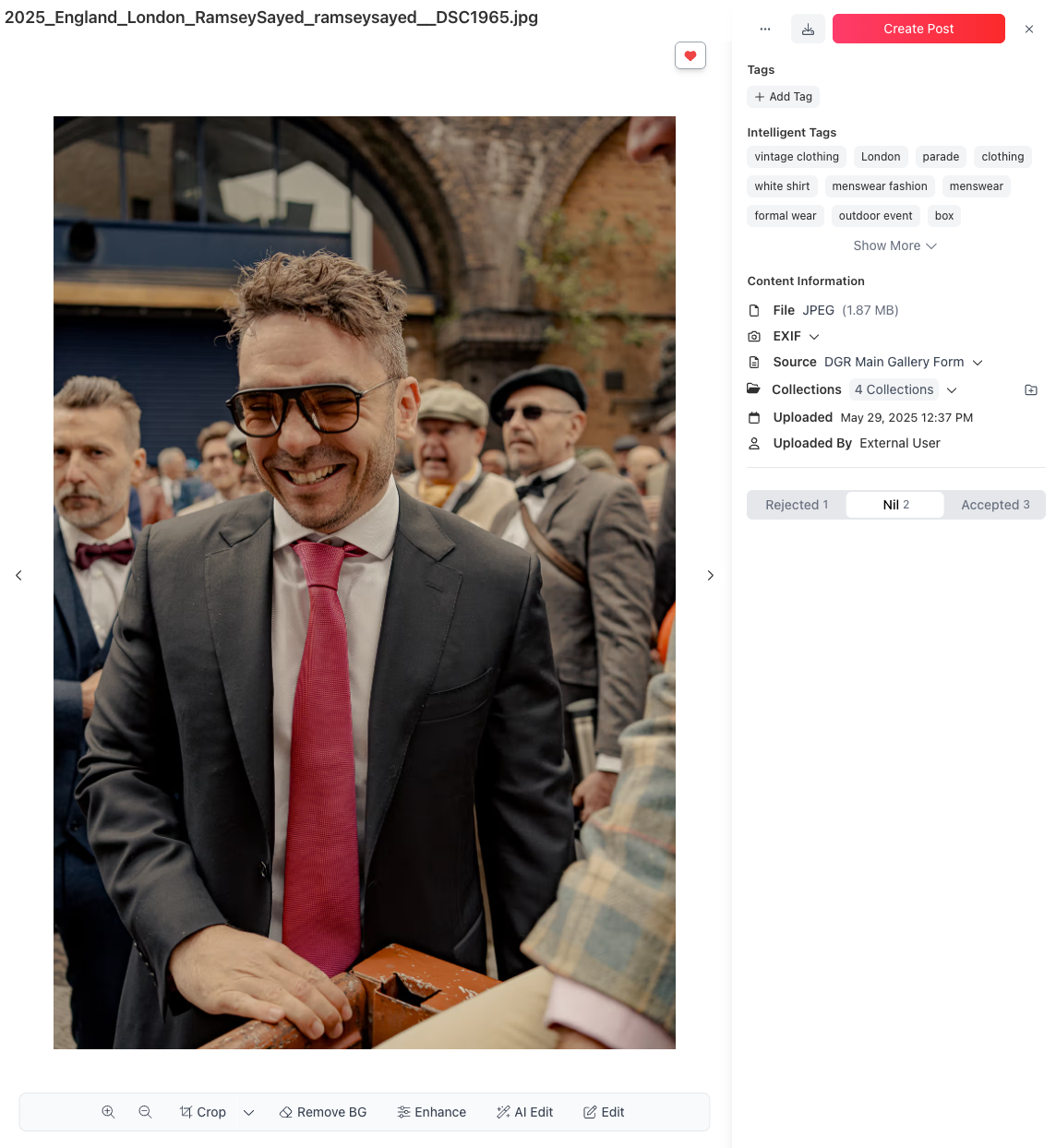
Click any item to open the detail view, where you can tag it, see its full details and act on it.
Tags
See the Intelligent Tags Jam adds automatically, and add or remove your own.
Type in the Tags field and press Enter — changes save automatically.
Content Information
File — file type and size.
EXIF data — camera and capture details, where available.
Source — where the media came from.
Collections — which collections it belongs to.
Uploaded and Uploaded By — when it was added and who added it.
Posted status — whether it has already been posted to social.
Expiry - when the asset will be hidden from the library, if a date is set. Click it to change or clear the date. See Set an expiry date on media.
Resolution group
If you've uploaded the same image at different sizes - say a hi-res original and a web export - each one shows as its own tile in the grid, so you can use whichever you need directly. The sidebar's Resolution group section lists every version with its dimensions, marks the Original, and shows which one you're Viewing. See How duplicate uploads and media are managed.
Video transcript
For videos, click Transcript at the bottom of the player to open the transcript drawer. Lines come straight from the video's caption track, so the words and timings match what's said. Click any line to jump the player to that moment, or use the copy button to copy the whole transcript.
You can also moderate the item here (Nil / Accepted / Rejected — see Moderation), open it in the editor with Edit in Jam (see Meet the Jam Editor) or share it from the same view.
Tip — Consistent tags power better search and Smart collections.