
As your library grows, Jam gives you a few simple tools to keep everything findable — filters, search, tags and collections.
The basics
Filter by content, properties and relationships. See Filter your media.
Search in three modes. See Search your media.
Tag & edit in the detail view. See Tag & edit in the detail view.
Group related media into collections.
Choose a view
Use the view switcher above the grid to change how your library is laid out:
Grid - the default masonry layout.
List - a table with a Source column and other details.
Timeline - the grid split by when media was added: Today, Yesterday, This Week, then month by month.
Collection - media grouped by the collection it belongs to.
Automatic Intelligent Tags
Every piece of media you add is automatically analysed and tagged by Jam AI with Intelligent Tags that describe what's in each photo or video. Your library is searchable the moment it's imported — no manual tagging needed — and you can always add your own tags on top. See Tag & edit in the detail view.
The selection toolbar
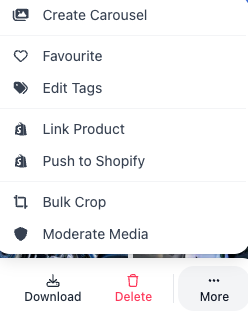
Select one or more items and a floating toolbar appears at the bottom of the grid with quick actions:
Create Post — start a post from the selected media.
Add to Collection — drop the selection into a collection.
Download the selected files.
Delete the selection.
More — Create Carousel, Favourite (or press F), Edit Tags, Set Expiry, Move to Collection, Remove from Collection, Link Product, Push to Shopify, Send to Webhook, Bulk Crop and Moderate Media.
See Media library keyboard shortcuts for the full list of hotkeys.

Tip — Because every file gets Intelligent Tags, you can find media by what's in it straight away — try Meaning search.